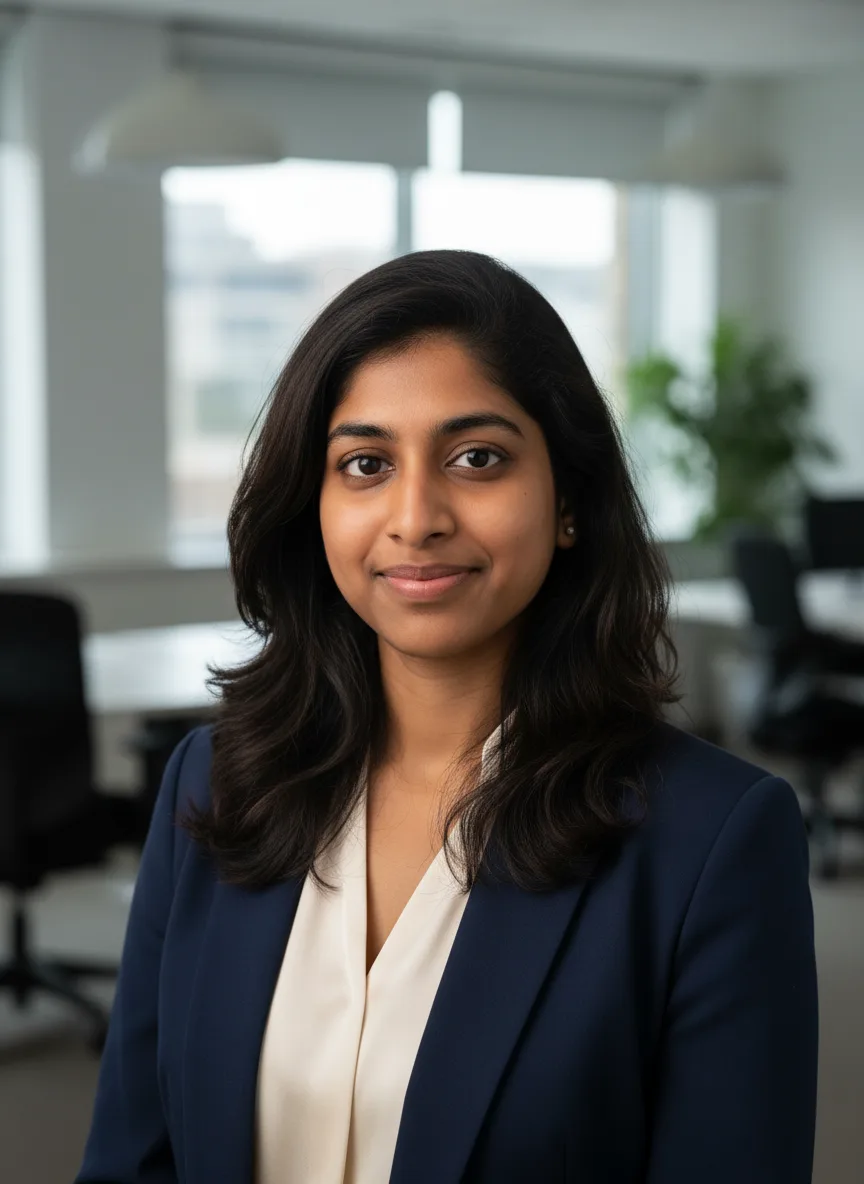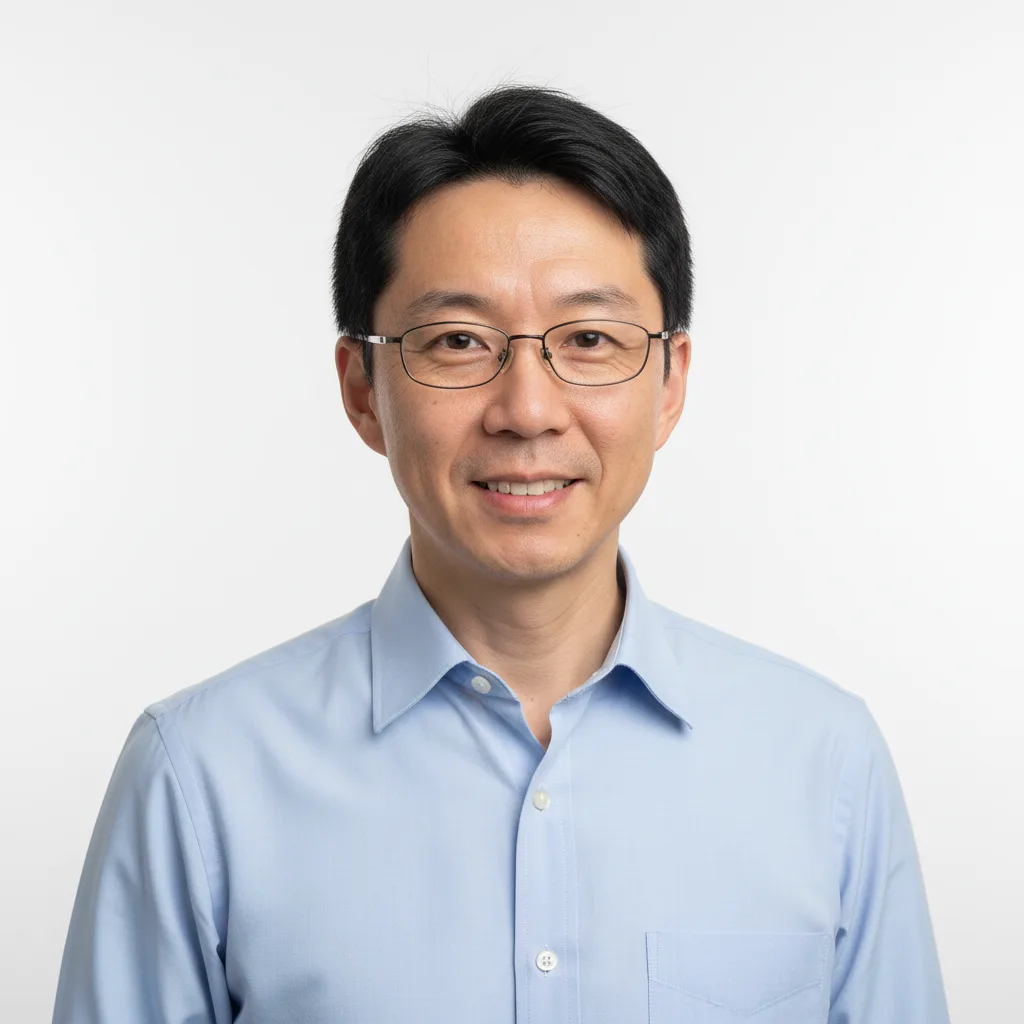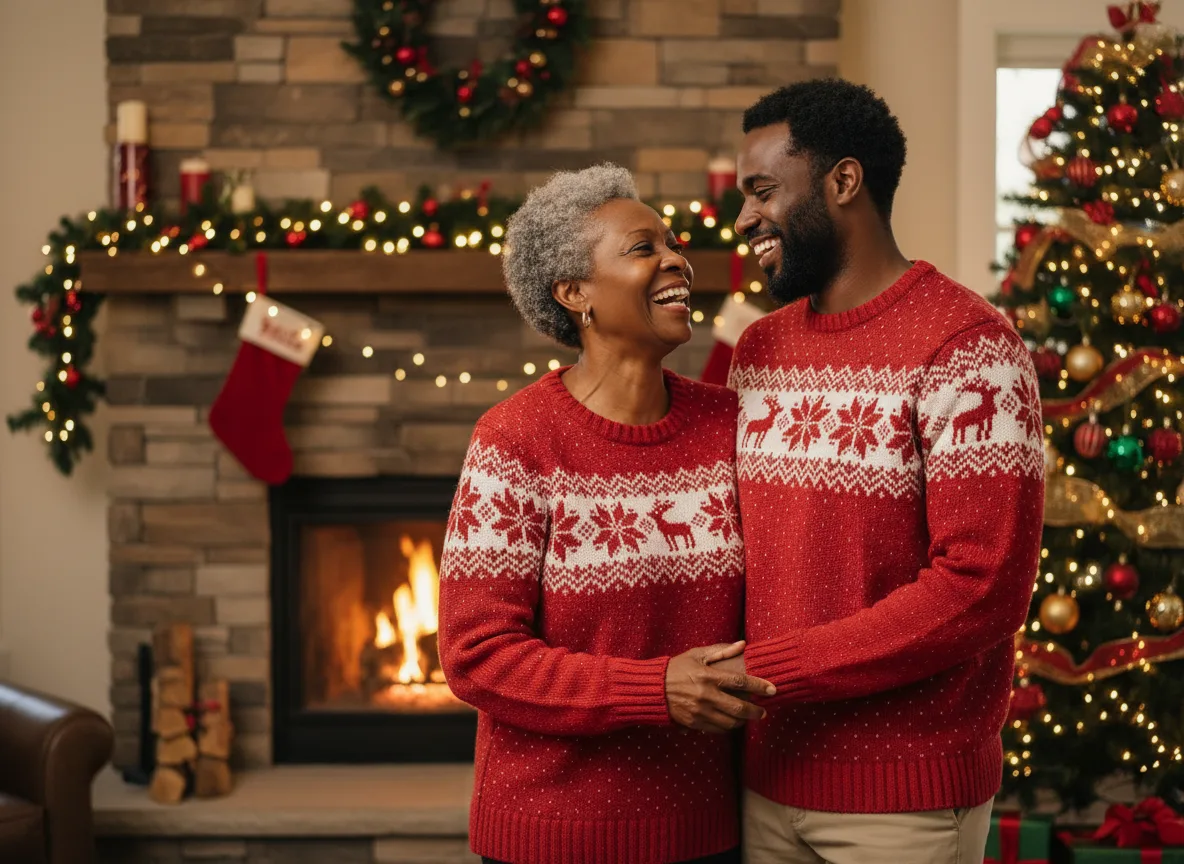
A photoshoot prompt that works names five things in this order: who is in the photo, where they are, what they wear, how the light falls, and one line that tells the model to keep the face exactly the same. Every photoshoot tool on Snap AI Studio is built on that pattern, and the presets below are the ones those tools ship with, so you can copy them as they are.
The five-part pattern
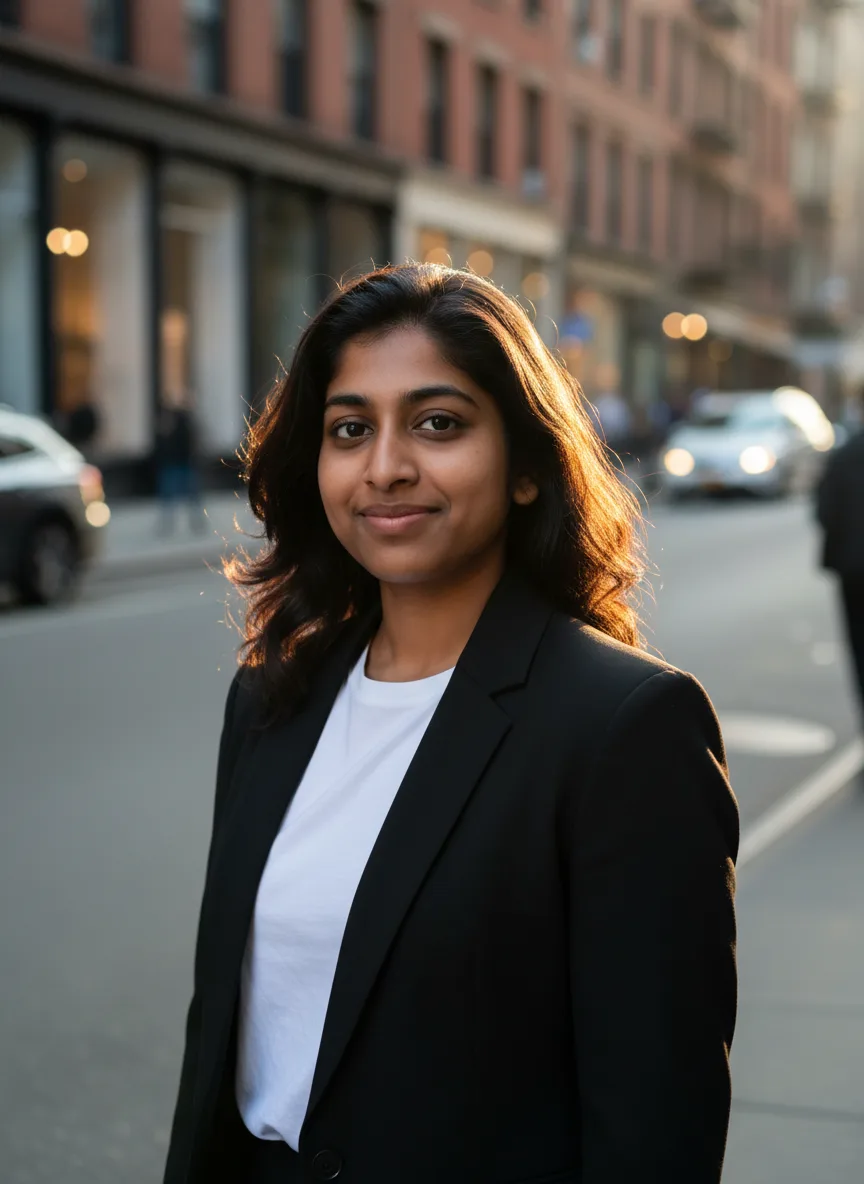
Here is the prompt the AI Photoshoot tool sends, with the parts labelled:
- Subject. "Professional photoshoot of the person in the reference photos". This tells the model who to draw and where to look for them.
- Setting. "golden hour on a city street". One place, one time of day.
- Outfit. "black blazer over a white tee". Name the garments, not the vibe.
- Camera and light. "Shot on a full-frame camera, 85mm lens, natural skin texture". Camera words push the model toward a photograph instead of an illustration.
- Keep line. "Keep their face, identity and hair exactly the same." Without it, image models tend to smooth or change features.
The sample at the top of this page came from exactly that prompt and one reference photo.
Settings that are ready to use
The AI Photoshoot tool offers six settings in one tap. Each is a complete location and light description:
- Clean white studio backdrop, soft key light
- Golden hour on a city street
- Beach at sunset
- Moody editorial set with colored gels
- Minimal apartment with window light
- Rooftop at night with city lights
Notice that each one pairs a place with a light source. "Beach" alone leaves the model to guess the time of day; "beach at sunset" settles it. When you write your own setting, keep that pairing.
Concepts beat adjectives
The AI Generated Photoshoot tool works from a concept instead of a setting, the way a real shoot starts from a moodboard. Its twelve concepts include:
- Old money summer on a yacht
- 90s film camera flash party
- Parisian cafe, morning light
- Cozy autumn knitwear in a forest
- Streetwear in Tokyo at night
- Black and white fine art portrait
- Desert road trip, vintage car
- Cyberpunk neon alley
A concept carries styling, props and light in a few words, which is why it reads as planned. The details field adds one or two specifics on top. The tool's own example is "wearing a cream linen suit, laughing". That beats "stylish and happy" because the model can draw a linen suit and a laugh; it cannot draw "stylish".
Building a set with shot type and grade
A set looks like one shoot when three things stay fixed across it: the theme, the light and the color grade. The AI Photoshoot Generator splits those into separate fields so you can change one at a time:
- Theme: free text, with "a luxury hotel lobby in Milan" as the example.
- Shot type: close-up portrait, waist-up portrait, full-body fashion shot, candid lifestyle shot or over-the-shoulder shot.
- Color grade: natural, warm film, cool cinematic, high-contrast black and white or soft pastel.
Keep the theme and grade the same and run a few shot types. The result is a varied set that still matches, which is what a real photographer would hand you.
Where your words go on a tool page
On a tool page you do not write the whole prompt. The tool fills in its template from the fields you choose, and your typing only goes into the free-text fields (outfit, details, theme). Open "Prompt sent to the model" under the fields to read the exact text before you generate.
If you want to change the structure itself, for example to drop the camera line or add a second person, open the studio, choose Edit photo and write the prompt from scratch. The pattern above still applies.
Mistakes that cost a generation
- Stacked adjectives. "Stunning, beautiful, ultra-realistic, 8k" adds nothing the model can draw. Replace them with a light source or a lens.
- Two settings in one prompt. "Beach and city rooftop" gives you a confused background. Run two generations instead.
- Conflicting light. "Soft window light, harsh noon sun" makes the model pick one or blend both badly.
- Dropping the keep line. It is the single line most responsible for the result still looking like you.
- Blocked words. Prompts are checked before any credits are spent. Nudity words are always blocked when a photo is attached, even in an innocent context. See why a generation was blocked.
Note
Even a good prompt is a request, not a guarantee. The model is drawing a new picture, so some frames will look more like you than others. Generate a few and keep the ones that do.
Picking a model for your prompt
The same prompt reads differently on different models. Nano Banana is the default on the photoshoot tools because it keeps faces consistent. It accepts up to three reference photos per run.
Seedream 5.0 Lite is the default on the AI Photoshoot Generator. It can return up to four images per run, which suits building a set from one prompt, and it tends toward more cinematic color.
A practical test: run your best prompt on both, with the same photos, and compare likeness first and styling second. The Generate button shows the credit price for each model before you spend anything, and a failed job is refunded automatically.