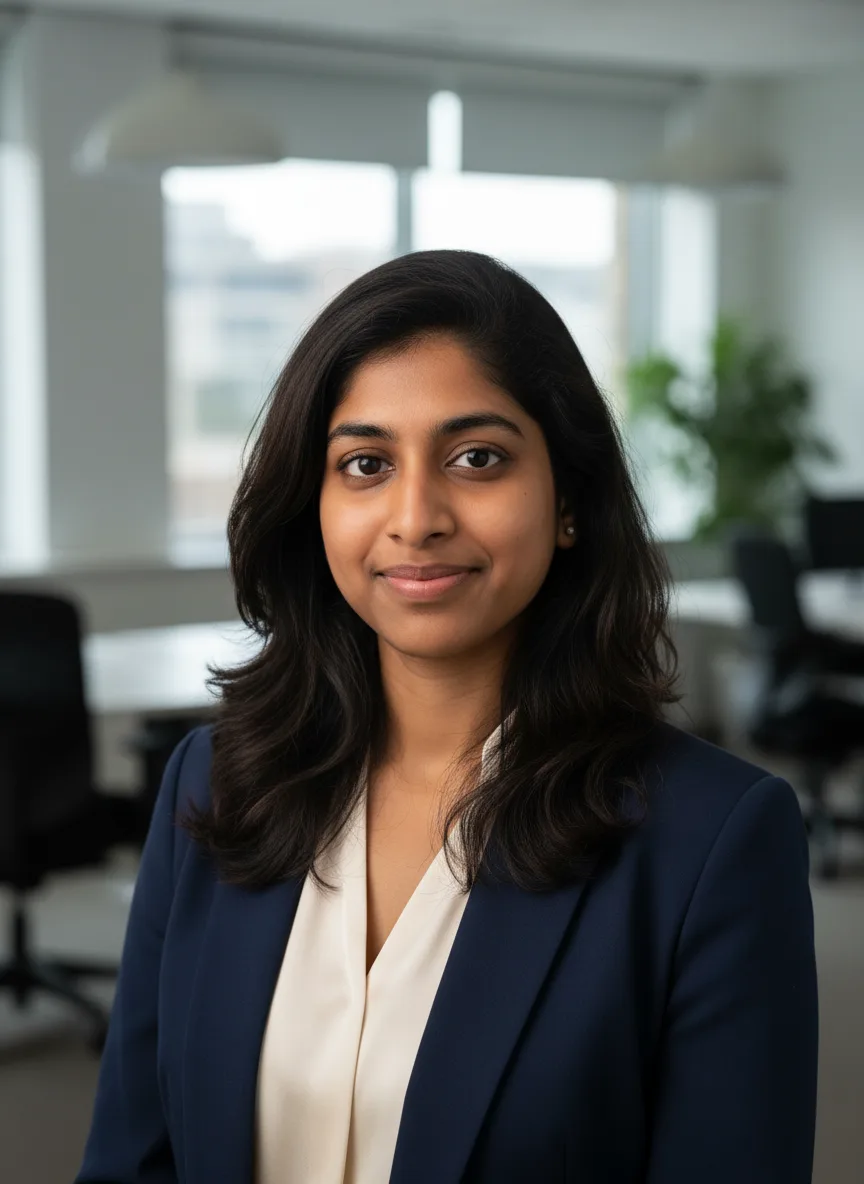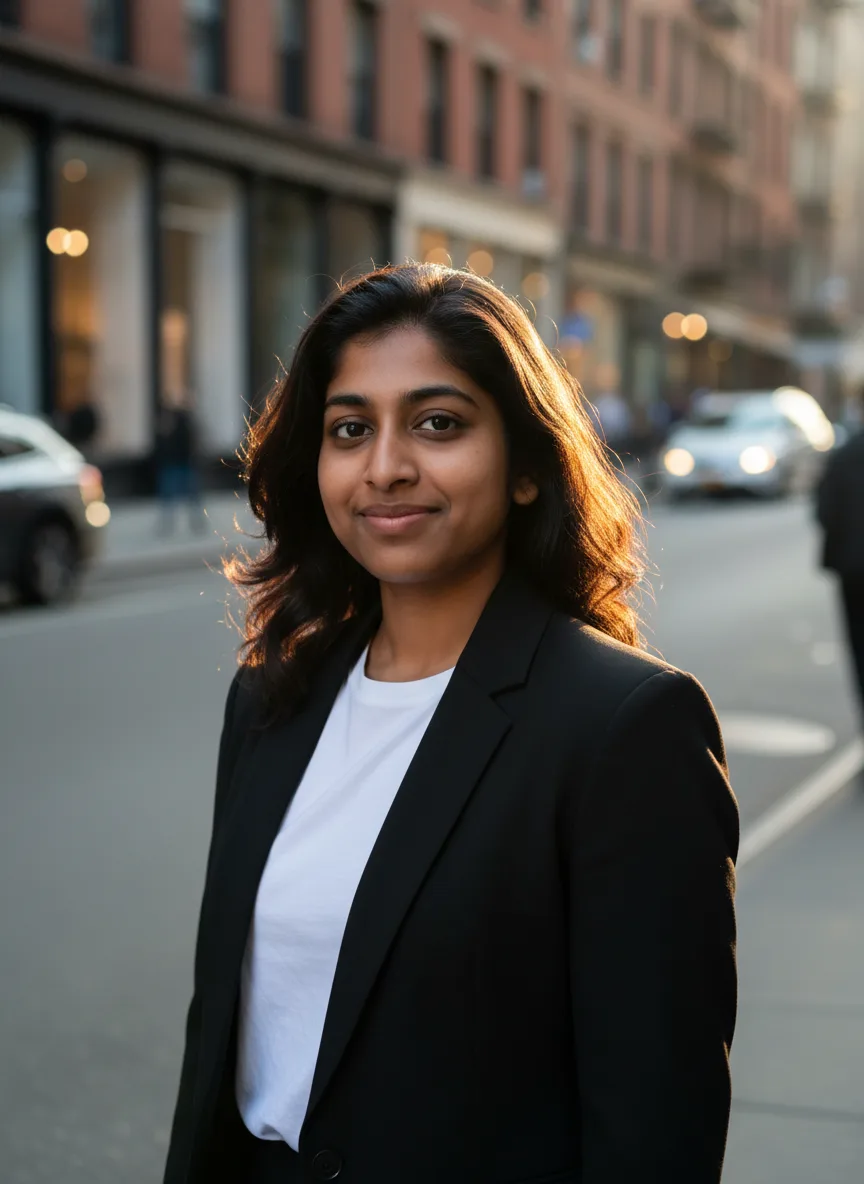
To make a LinkedIn headshot with AI, upload a clear, front-facing selfie to the LinkedIn Headshot tool, pick an attire and a background, generate a few variations and keep the one that looks most like you. The tool frames your head and shoulders in a square with a warm expression and a background that does not distract, which is what a profile photo needs at small sizes.
What a LinkedIn photo needs
LinkedIn shows your photo small: in search results, comments and message lists, inside a circle. At that size detail matters less than three things:
- Framing. Head and shoulders, centered, with some space around the head so the circle crop does not clip it.
- Expression. A relaxed, approachable smile and eye contact with the camera.
- A quiet background. Plain or softly blurred, so your face is the first thing people see.
The LinkedIn Headshot preset asks the model for exactly that: "head and shoulders centered, warm approachable smile, eye contact, soft flattering light", followed by "Keep the real face and identity. Photorealistic, not retouched."
The selfie to start from
The model keeps what it can see, so the selfie decides how much the result looks like you.
- Face the camera with your eyes open and your whole face visible.
- Stand facing a window for soft, even light. Avoid overhead office lights that shadow your eyes.
- Wear your hair the way you wear it to work.
- Remove sunglasses and skip beauty filters.
One good selfie works. Two or three from slightly different angles give the model more to hold on to. The photo upload guide goes through this in more detail.
Attire and background settings
The LinkedIn Headshot tool has four attire options and four backgrounds:
| Attire | Background |
|---|---|
| Business suit | Soft blurred office |
| Blazer over a t-shirt | Plain light gray |
| Smart casual shirt | Outdoor city blur |
| Blouse and cardigan | Warm neutral wall |
Match the attire to your field rather than to the most formal option. A blazer over a t-shirt suits a lot of tech and creative roles; a business suit suits finance, law and sales. The output is square (1:1), which is the shape LinkedIn crops from.
When to use the AI Headshot Generator instead
The AI Headshot Generator is the same idea with more range. It renders portrait 3:4 rather than square and offers six attire options (including a black turtleneck and a doctor's white coat) and five backdrops (including dark charcoal and outdoor greenery). Use it when you need the same photo for a resume, a team page or a conference bio as well as LinkedIn, then crop a square for your profile.
Both tools default to Nano Banana, which is chosen because it keeps faces consistent.
If a result is close but soft, Nano Banana Pro is the sharper option in the same model menu. It costs more per image, and the price shows on its card and on the Generate button.
Picking the right variation
Generate three or four versions with the same settings. Small differences in expression make a big difference in a headshot.
Then choose by likeness first, polish second. The most flattering result is not always the right one. The test is whether someone who meets you on a video call would recognize you from it. If none of the results pass, change the selfie before you change the settings.
Keep it honest
A headshot that does not look like you works against you the first time you meet someone. Do not use a result that changes your age, build or features, and do not use the tool on someone else's photo without their agreement.
Finishing touches
- Check the crop. LinkedIn crops to a circle. Look at the result as a small circle before you upload it.
- Upscale if you need print. For a profile photo the square output is ready to upload. For print, the image upscaler doubles images up to 1024 x 1024 pixels and adds detail.
- Reuse it. The same image works for Slack, Zoom and email avatars, so your profile looks the same everywhere.
Headshots for a whole team
For a company page, have each person upload their own selfie and use the same attire and background settings. The shared settings give the team a consistent look without anyone booking a studio. Each person should upload only their own photo.
What it costs and what happens if it fails
Each generation is priced by the model you choose, and the Generate button shows the exact number of credits before anything is spent. New accounts get 50 free credits. If a generation fails, the credits go back to your balance automatically.