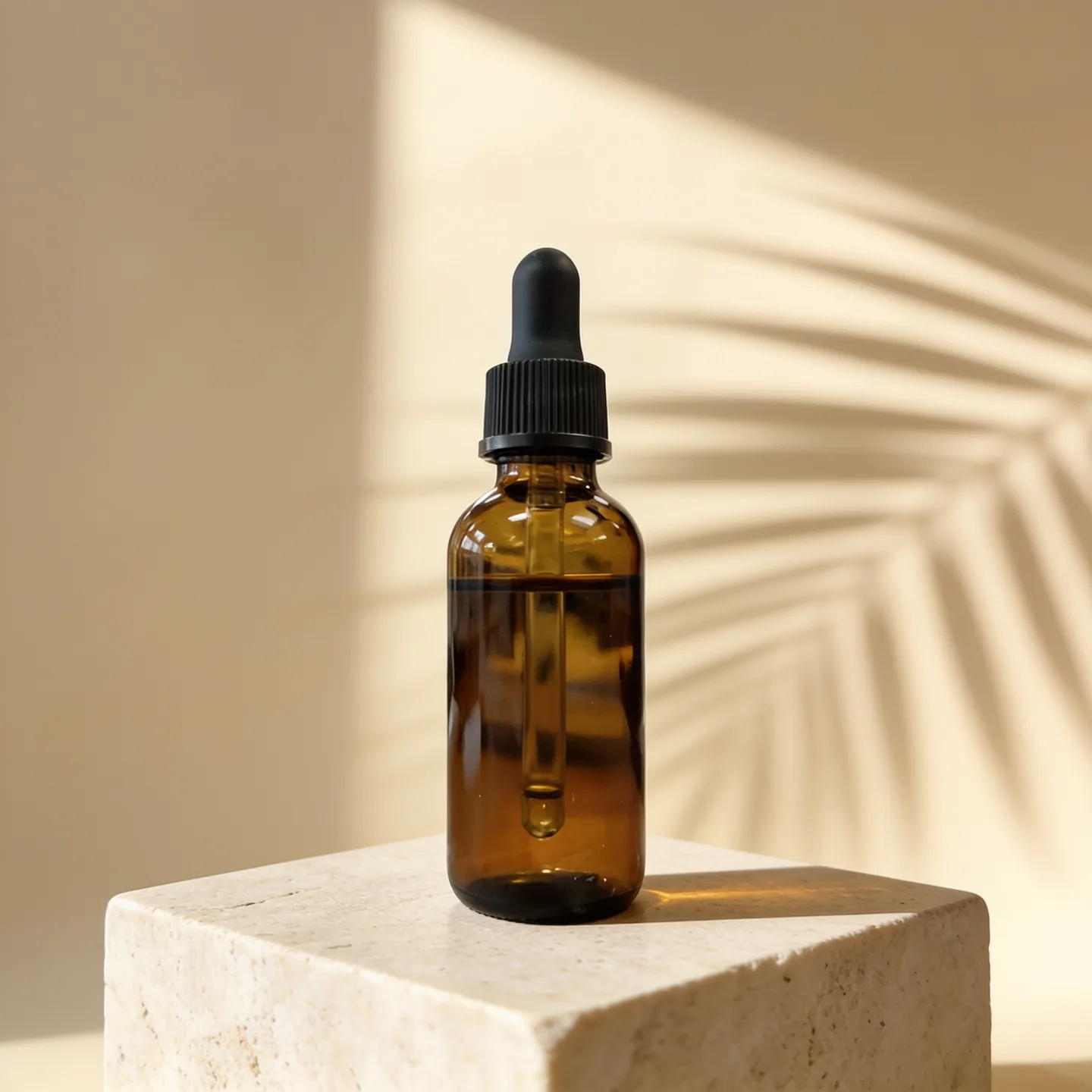
You can make usable product photos from a single phone shot. Take a clean photo of the product against a plain wall, place it in a scene with the AI Product Photo Generator, cut it out with the background remover when you need a transparent PNG, and run small images through the upscaler for extra detail. All three tools draw from the same credit balance, and the sample above came from that first step.
The workflow in three tools
- Product Photo Generator: puts the product in a studio, lifestyle or seasonal scene.
- Background Remover: gives you a transparent PNG for marketplaces, ads and design tools.
- Image Upscaler: adds detail to small images and generations.
Each step is a separate job, priced separately, and you only run the ones you need.
Step 1: shoot the reference photo
The generator can only keep what it can see, so the reference photo does most of the work.
- Shoot straight on, at the product's height, not from above.
- Use daylight from a window. Turn off warm room lights so colors stay true.
- Put the product against a plain wall or a sheet of paper.
- Make sure the label is sharp and readable in the photo. If you cannot read it, neither can the model.
- Upload up to four photos from different sides if the product has details on the back or top.
Step 2: place the product in a scene
The AI Product Photo Generator comes with six scenes:
- On a white seamless studio background
- On a marble counter with soft morning light
- On a wooden table with plants, lifestyle
- Floating with splashes of water
- On a podium with pastel shapes
- In a festive holiday setting
The prompt behind every scene includes the line "Keep the product's shape, colors, label and text exactly the same." Output is square (1:1), which fits most store grids and marketplace thumbnails.
The default model is Seedream 4.5, which is chosen for consistent products across a set. It can return up to four images in one run.
Check the label every time
Product text is the part most likely to go wrong. Before you use a result, zoom in and compare it with the real product: brand name, small print, logo shape and colors. If the text drifts, regenerate or switch models. Riverflow 2.5 Pro is built for product and packaging shots, and it is the option to try when labels matter most. It costs more per image, and the card shows how much.
Warning
A generated image shows the product in a scene that never existed. Do not use it to show features, sizes or contents the product does not have, and check the rules of the marketplace you sell on before replacing real photos.
Step 3: a transparent background
Many marketplaces and ad templates want the product on its own. The background remover cuts out the subject and returns a PNG with a transparent background. It uses BiRefNet, which handles fine edges, and it is one of the cheapest jobs on the site, so it is fine to batch a whole catalog through it.
Two ways to use it:
- On the original phone photo: the quickest route to a clean cutout of the real product.
- On a generated scene: useful when the generator improved the lighting and you want that version without the scene.
For the cleanest edge, give it good contrast between the product and the background. A white product on a white wall is harder than a white product on a gray one.
Step 4: upscale for detail
The image upscaler uses the Clarity upscaler, which doubles width and height and adds detail such as texture and edges rather than just enlarging the pixels. It takes images up to 1024 x 1024 pixels (about 1 megapixel), so it is meant for generations and small web images, not full-size phone photos. Larger images are turned away before any credits are spent.
A short description in the optional field ("glass perfume bottle, studio light") helps it add the right kind of detail.
Keep a catalog consistent
A store looks planned when every product sits in the same scene with the same light. Pick one scene for the whole catalog, use the same aspect ratio, and shoot every reference photo the same way. Save seasonal scenes for campaigns and keep the main listing images consistent.
What it costs
Every step shows its credit price on the Generate button before you spend anything, and failed jobs are refunded automatically. The per-image price depends on the model you pick in the generator; the background remover and upscaler have one model each. Paid plans include commercial use of what you generate, subject to each model provider's content policy.