To make an AI dance video, upload one full-body photo where the whole person is visible with some space around them, choose a dance style, keep the default video model (Kling 3.0 Standard) and press Generate. The AI Dance Video tool returns a 5-second vertical clip of that person dancing, ready for TikTok, Reels or Shorts. The photo decides most of the result: a full-length shot with clearly separated arms and legs dances cleanly, while a selfie or a cropped photo forces the model to invent half the body. This guide covers the photo, the six dances, which of the eight video models to pick, length and sound, and the fixes for the problems everyone hits on their first try.
How an AI dance video is made
There is no motion capture and no template video of a dancer. A video model takes your photo as the first frame and a short instruction, and predicts every following frame. The tool sends this prompt with your dance filled in: the person starts dancing, full body in frame, energetic and rhythmic, smooth natural motion, face and outfit stay consistent, fixed camera. You can read it under "Prompt sent to the model" before you spend anything.
Two things follow from that. First, anything the photo does not show (the back of a jacket, legs hidden behind a table, the far side of the face) has to be invented as the person turns, which is where likeness slips. Second, the camera is told to stay put, so the dancer has to fit inside the frame you uploaded. If the photo is cropped at the knees, the dance gets cropped at the knees.
Step 1: The photo
| Photo | What happens | Verdict |
|---|---|---|
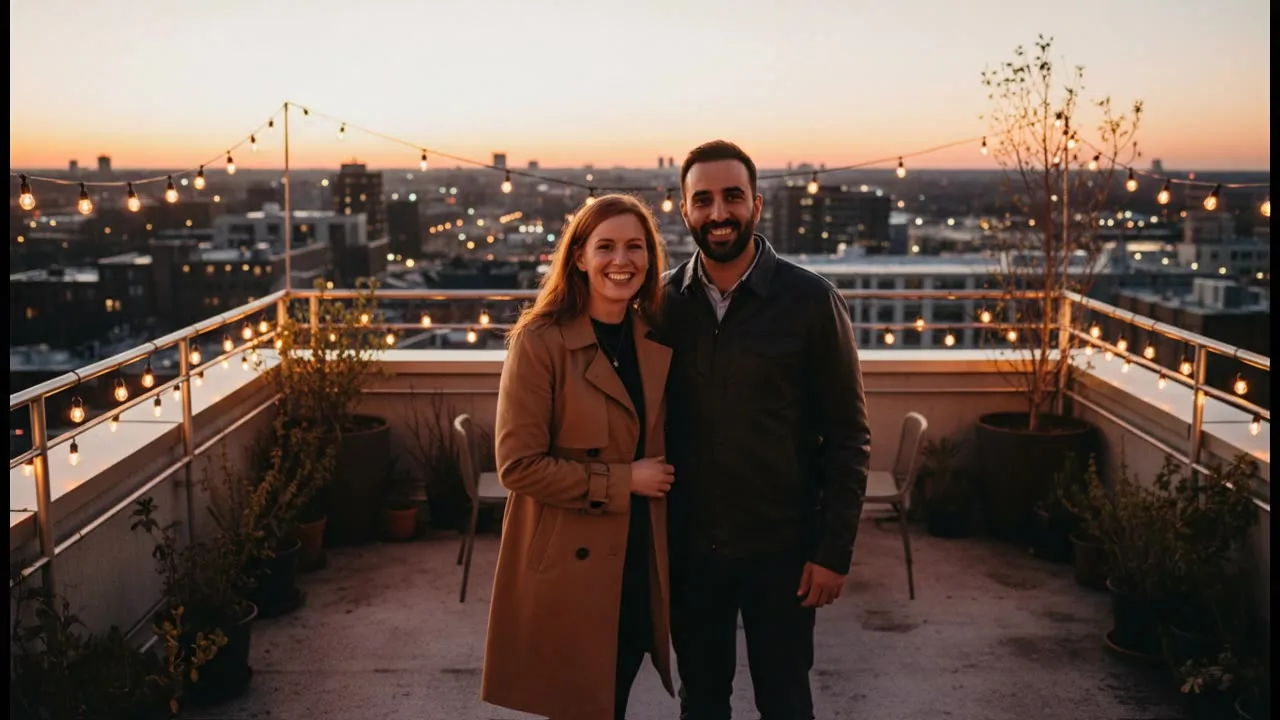
| Full body, standing, space above the head and below the feet | The model has the whole body to move and room to move it | Best |
| Full body, arms crossed or hands in pockets | Arms have to be "unfolded" from nothing; hands often blur | Works, uncross the arms if you can |
| Knees up | Legs are invented below the frame and get cut off | Weak |
| Sitting | The model has to stand the person up first, which rarely looks right | Avoid |
| Selfie or headshot | The body, outfit and legs are all invented | Use image to video with a small motion instead |
| Group of three or more | Dancers swap faces or merge when they cross | Cut it down to one or two people |
A few more details pay off. Plain backgrounds animate more cleanly than crowds or patterned wallpaper, because the model is not also deciding what moves behind you. Fitted clothes keep their shape; long loose skirts and coats are beautiful when they work and smear when they do not. A vertical photo matches the vertical 9:16 video, so nothing gets letterboxed or cropped. The help center's page on input photo quality covers sizes and formats.
Only use photos of yourself and people who have agreed. Model providers refuse many requests involving public figures and minors, and our own check runs before any credits are taken.
Step 2: Pick the dance
The tool has six dances. They differ mainly in how fast the limbs move, and speed is the main cause of artifacts.
| Dance | Motion | Good for | Risk |
|---|---|---|---|
| Hip hop routine (default) | Medium speed, lots of upper body | Most people and outfits | Hands blur on fast arm moves |
| Salsa | Hips and footwork, turns | Couples, party clips | Turns expose the unseen back of the outfit |
| K-pop choreography | Sharp, synchronized arm moves | Fans, trend videos | The most demanding on arms and hands |
| Silly viral dance trend | Loose, comedic | Pets, kids, birthday messages | Few; mistakes read as part of the joke |
| Slow waltz | Slow, smooth, small steps | Older photos, weddings, grandparents | Looks stiff with a single dancer |
| Breakdance moves | Floor work, spins | Show-off clips | Highest failure rate: the body goes upside down |
If your first try melts, step down one row in speed before changing anything else. Going from K-pop to hip hop fixes more clips than switching models.
Step 3: Choose the video model
The dance tool can run eight video models. The Sound column says whether the model generates audio with the clip. They are all billed per second of video, so a 10-second clip costs twice a 5-second one on the same model, and the Generate button shows the exact number of credits before you commit.
| Model | Lengths | Shape | Sound | When to use it |
|---|---|---|---|---|
| Kling 3.0 Standard (default) | 5 or 10 s | 9:16, 16:9, 1:1 | Not listed | Reliable bodies at a middle price; start here |
| Kling 3.0 Pro | 5 or 10 s | 9:16, 16:9, 1:1 | Yes | Faster dances and better hands, the most expensive per second of the eight |
| Seedance 2.0 | 5 or 10 s | All common shapes | Yes | Keeps the character stable through turns |
| Veo 3.1 Lite | 4, 6 or 8 s | 9:16 or 16:9 | Yes | Cheapest per second; good for testing a photo |
| Veo 3.1 Fast | 4, 6 or 8 s | 9:16 or 16:9 | Yes | Veo quality with sound, quicker than full Veo |
| Wan 2.7 | 5 or 10 s | All common shapes | Yes | A fair price with audio |
| Grok Imagine Video | 5 or 10 s | All common shapes | Not listed | Fast, playful clips; fine for the silly trend |
| MiniMax Hailuo 2.3 | 6 or 10 s | 16:9 only | Not listed | Strong body physics, but landscape only, so not for Reels or TikTok |
A sensible order: test the photo on Veo 3.1 Lite, which costs the least per second, to see whether the body holds together at all. If it does, run the keeper on Kling 3.0 Standard. Move to Kling 3.0 Pro or Seedance 2.0 only for fast dances or clips you plan to post widely.
The Veo vs Kling vs Seedance comparison runs the same prompts across the three families, and the models section of the blog has the rest of the model notes. If you want a dance the tool does not list, open image to video with the same photo and describe the moves yourself; there you can also pick models that are not on the dance tool, such as the budget Wan 2.6.
Step 4: Length and sound
Five seconds is enough for one clear move and is what most dance trends use. Ten seconds gives a full phrase of choreography but doubles the price and doubles the chances of something drifting halfway through. Make the 5-second version first; extend only the photos that already dance well.
None of the models dance to a specific song. The ones with sound generate ambient audio and footsteps, not your track, and the timing of the moves will not match a beat you add later. Two ways to handle it:
- Add the song when you post, from the TikTok or Instagram sound library, and pick a track whose tempo roughly matches the dance you chose. Most viewers will not notice a loose sync on a 5-second loop.
- Make a short original track with the AI music generator and lay it under the clip in any video editor. This also avoids music rights questions if the clip is for a brand account.
Step 5: Fix what went wrong
| Problem | Fix |
|---|---|
| Arms or legs melt or merge | Slower dance; a photo with limbs clearly apart from the body; Kling 3.0 Pro or Seedance 2.0 |
| The face changes when the person turns | Use a photo facing the camera with even light; pick a dance with fewer turns (hip hop over salsa) |
| Feet cut off | The photo was too tight; add space below the feet, or crop the photo to 9:16 with room around the body |
| Black bars around the video | The photo shape did not match the video; crop to 9:16 before uploading |
| The person barely moves | Some models play safe on small subjects; use a photo where the person fills more of the height |
| Generation blocked | See why generations get blocked; a provider refusal is refunded automatically, up to a daily limit |
A failed generation costs nothing: credits go back to your balance automatically. If a finished clip is simply bad, the page on requesting a refund explains what qualifies.
Ideas that work well
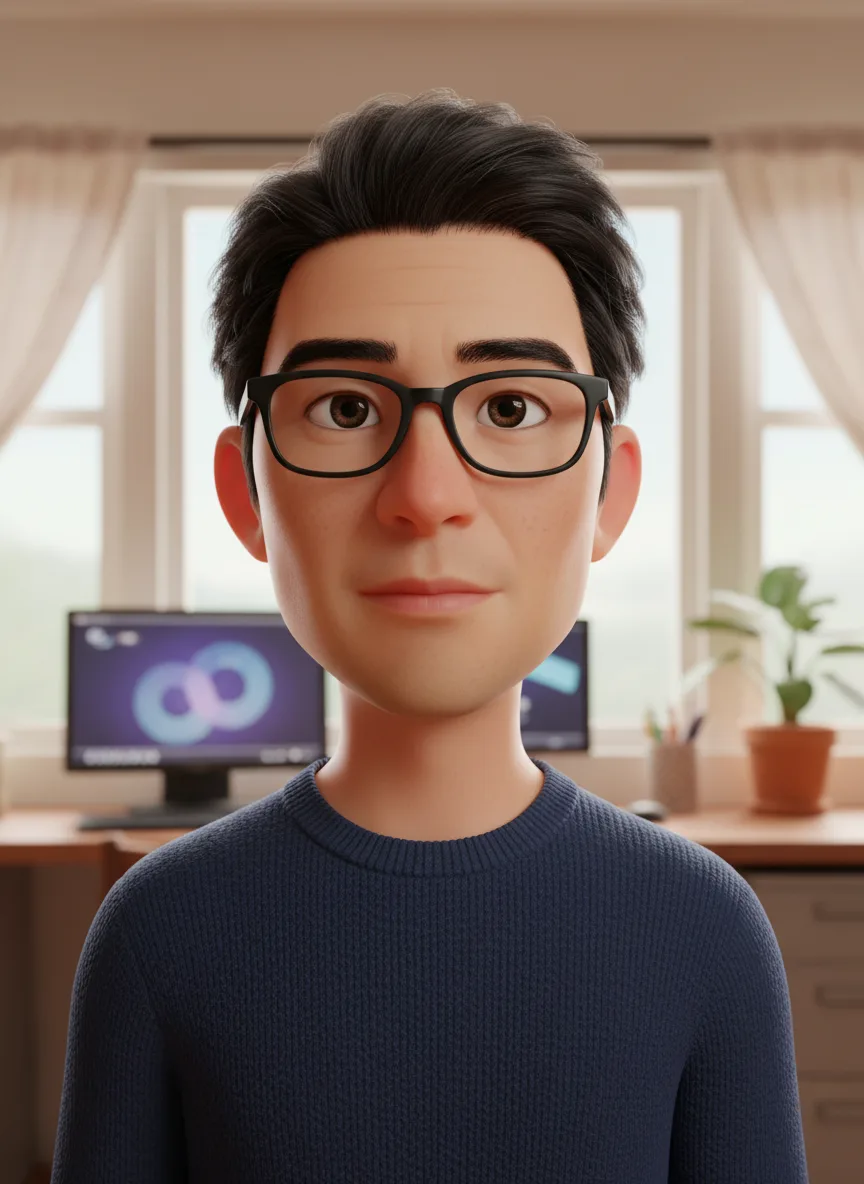
- A cartoon that dances. Turn the photo into a 3D character with the cartoon guide first, then make the cartoon dance. Cartoon bodies are simpler, so they melt less.
- Grandparents' wedding photo. A slow waltz on an old full-length photo, after a pass through the photo restorer if it is scratched.
- Pet birthday message. The silly viral dance on a photo of the dog standing, with a caption.
- Couples. For a hug or a kiss rather than a dance, the AI kiss video guide and the AI hug generator handle two people better than a dance prompt.
New accounts get 60 free credits. A video costs more than a photo, so check the price on the Generate button against your balance before you start.