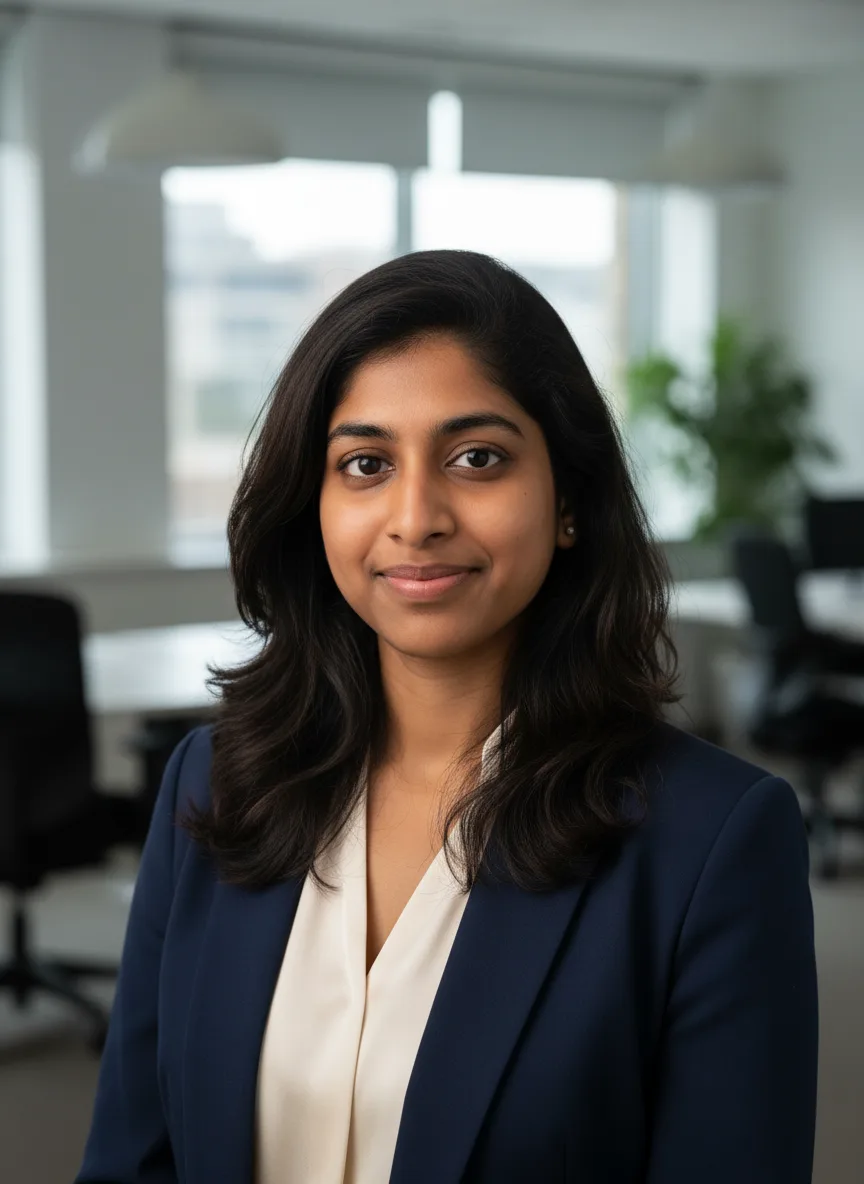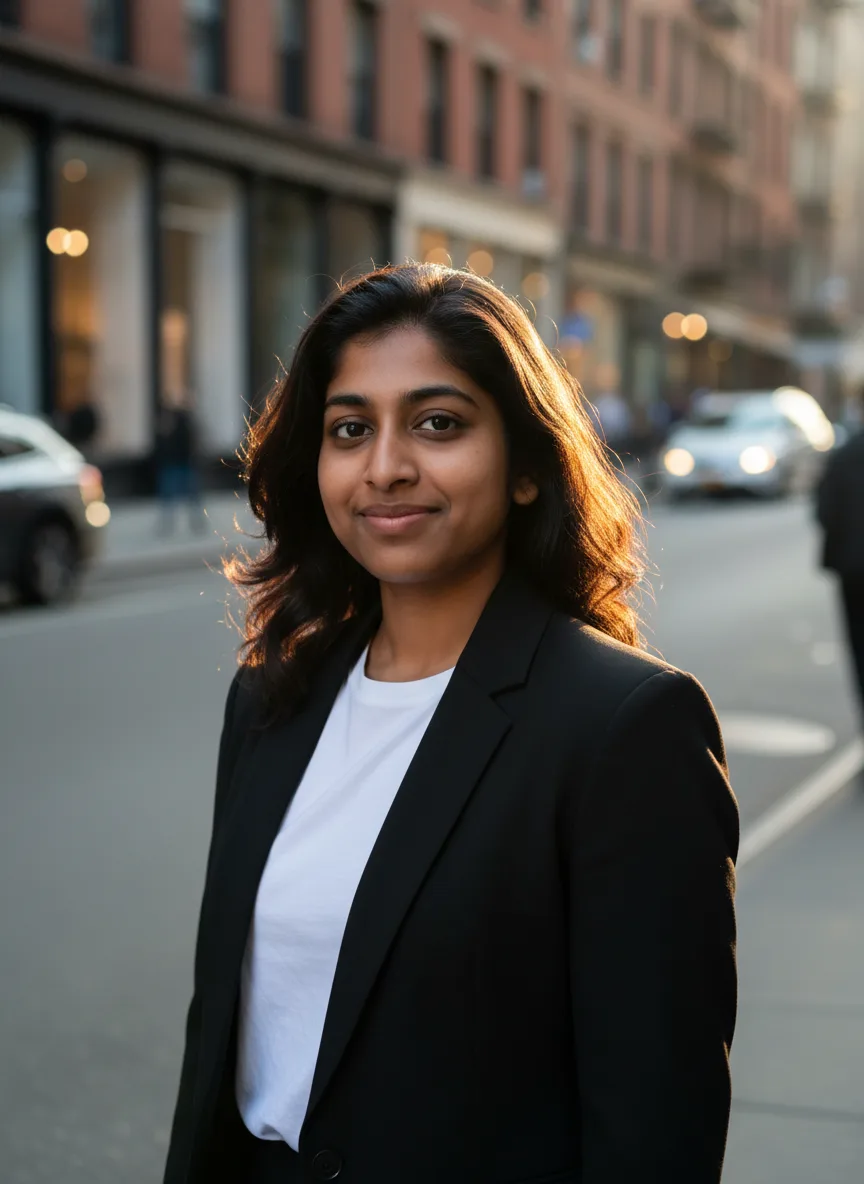
To turn a photo into a cartoon, upload one sharp photo where the face is large and evenly lit to an AI cartoon tool, pick a style (3D animated movie, comic book, anime, claymation or chibi sticker), generate, and compare the face with the original before you download. The model redraws everything in the new style but keeps the features it can see clearly: hairstyle, skin tone, face shape, glasses and the colors of your clothes. Most bad cartoons come from the photo, not the style, so this guide starts there, then covers the five styles, model choice and the fixes for faces that stop looking like you.
Step 1: Pick a photo the model can read
A cartoon is a simplification. The model throws away pores, stray hairs and background clutter and keeps the shapes that make a face recognizable. It can only keep shapes it can see.
- Face size. The face should fill roughly a third of the frame. A full-length photo from across the room gives the model a face about the size of a thumbnail, and the cartoon becomes a generic person in your outfit.
- Light. Daylight from a window, facing you. Hard side light puts half the face in shadow, and the cartoon often turns that shadow into a different face shape.
- Nothing covering the face. Sunglasses, a cap pulled low or a hand on the chin hide exactly what the model needs. Regular glasses are fine; the frames usually carry over well.
- No beauty filters. Smoothing and face-slimming filters change your proportions before the model even starts.
- A distinctive detail helps. A bright jacket, a hairstyle, freckles or a beard give the cartoon something to hold on to. Plain gray clothes and neutral hair make it harder to tell the cartoon is you.
The guide to choosing photos for AI tools has before and after examples, and the help center page on input photo quality lists the sizes and formats the uploader accepts.
Step 2: Choose the style
The Cartoon Yourself tool has five styles built in. Each one is a short instruction inserted into the same prompt, which tells the model to keep your recognizable features, hairstyle, skin tone and outfit colors and to return clean, high quality character art.
| Style | What you get | Works best for | Watch out for |
|---|---|---|---|
| 3D animated movie character | Rounded shapes, big eyes, soft light, like a frame from an animated feature | Profile pictures, kids, pets, gifts | Can make adults look younger than they are |
| Classic comic book hero | Ink outlines, flat color, a slightly heroic jaw | Posters, birthday cards, team photos | Strong lines exaggerate wrinkles and stubble |
| Anime protagonist | Clean line art, large expressive eyes, simplified nose | Avatars, Discord and gaming profiles | Faces converge toward a type; keep hairstyle distinctive |
| Claymation figure | Handmade clay look, visible texture, miniature set feel | Funny family photos, holiday cards | Fine detail such as jewelry melts into blobs |
| Cute chibi sticker | Big head, tiny body, simple shapes | Chat stickers, merch mockups | Likeness relies almost entirely on hair and clothes |
If none of these is the look you want, the style pages run the same idea with a different finish. 3D cartoon, comic book, pop art and line art all accept your photo in Edit photo mode, and each shows the exact style text it adds to your prompt. For anime with a scene behind you rather than a plain character portrait, the AI anime generator adds a scene field.
Step 3: Generate, then compare two models
The default model for Cartoon Yourself is Nano Banana, which is fast and holds on to faces well when it edits a photo. The tool can also run Nano Banana 2, Nano Banana Pro, Seedream 4.5, GPT Image 2, FLUX.2 [pro] and Qwen Image 3. They read "cartoon" differently: some lean toward glossy 3D, some toward flatter illustration, some keep the original photo's lighting more than others.
A routine that works:
- Generate once on the default model.
- Generate once on one other model with the same photo and style. GPT Image 2 is built for precise instruction following, so it is a good second opinion when the default drifts away from the style you picked.
- Put both next to the original photo and judge the eyes and mouth first, then the hair, then everything else.
- Keep the better one, or change the photo if both missed. Switching to a pricier model rarely fixes a face that was too small to begin with.
The Generate button shows the credit price for the model you picked before anything is spent, and a failed generation is refunded automatically. New accounts get 60 free credits, enough to try several styles on one photo.
Step 4: Fix the usual problems
| Problem | Likely cause | Fix |
|---|---|---|
| The cartoon does not look like you | Face too small, shadowed or filtered | Crop closer to the face and use an unfiltered photo in even light |
| You look ten years younger | The 3D and chibi styles soften features by design | Try the comic book style, or keep the 3D style and run it on a second model |
| Glasses disappeared | Reflections hid the frames | Use a photo with less glare on the lenses |
| Skin tone changed | Colored light (sunset, neon, a red wall) in the photo | Pick a photo in daylight; the model reads tinted light as skin color |
| Two people merged into one face | Group photo with small faces | Cartoon each person separately, or use a closer group shot of two |
| Hands look odd | Hands near the face or holding objects | Crop the hands out, or accept it; cartoon hands are forgiven more than faces |
| Background is busy | The model kept the original background | Remove it first with the background remover, then cartoon the cutout |
Step 5: Use it
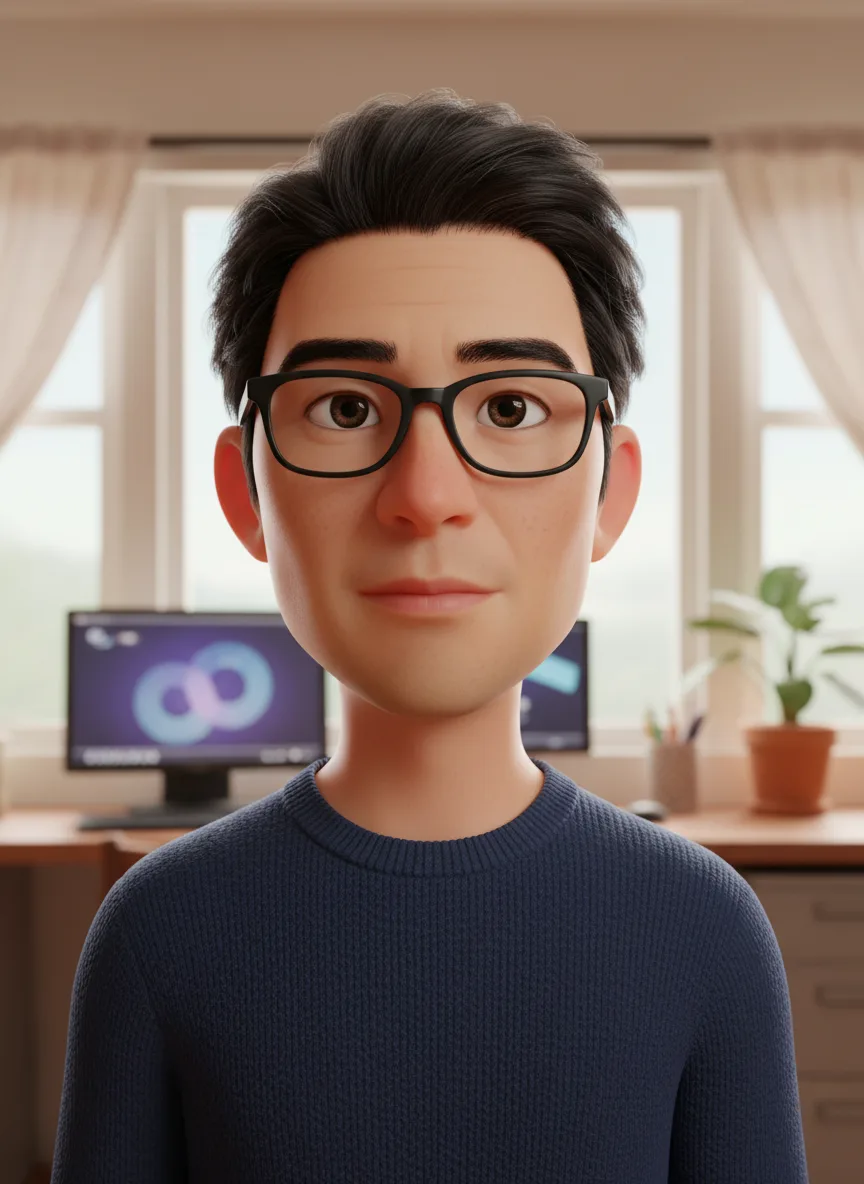
The cartoon comes back at about one megapixel. Our 3D cartoon sample, the image at the top of this page, is 864 x 1184 pixels in the default 3:4 frame. That covers what most people make with it:
- Profile pictures. Switch the aspect ratio to square 1:1 before generating, so the crop is yours rather than the platform's. The AI avatar generator frames head and shoulders on a clean background if that is all you need.
- Stickers. The chibi style is close already; the AI sticker maker adds the white die-cut border and flat colors that sticker printers expect.
- Prints and cards. For anything larger than about 4 x 6 inches, enlarge it first with the image upscaler.
- Moving cartoons. Feed the finished cartoon into image to video as the first frame and describe a small motion: a wave, a wink, a laugh. Or skip the still entirely with the 3D Cartoon It video effect, which turns a normal photo into a short clip of a 3D character waving back. For a full routine, the AI dance video guide shows how to make a photo dance.
Whose photos can you cartoon?
Your own, and photos of people who have agreed. Cartooning a friend for a birthday card is fine if they would be happy to see it; cartooning a stranger from a public photo is not, and model providers refuse many requests involving public figures. If a generation is blocked, the help center explains why generations get blocked and what is refunded. If you plan to sell the result (on a mug, a print or a sticker sheet), read the page on commercial use first.
Which tool for which cartoon?
| You want | Use |
|---|---|
| Yourself as a cartoon character, five built-in styles | Cartoon Yourself |
| Anime art with a scene around you | AI anime generator |
| A clean head-and-shoulders profile picture | AI avatar generator |
| A die-cut sticker from a photo or a description | AI sticker maker |
| A specific art finish (pop art, line art, watercolor, pixel art) | The style pages, in Edit photo mode |
| Your cartoon moving | Image to video or the 3D Cartoon It effect |