AI Face Swap puts the face from one photo onto the person in another photo, with matching light and skin tone. It takes two uploads and one click: the face first, the target second.
Note
Only swap faces of people who have agreed to it.
Upload the face photo first and the target photo second, then press Generate. No prompt needed. The order that matters, tips and fixes.
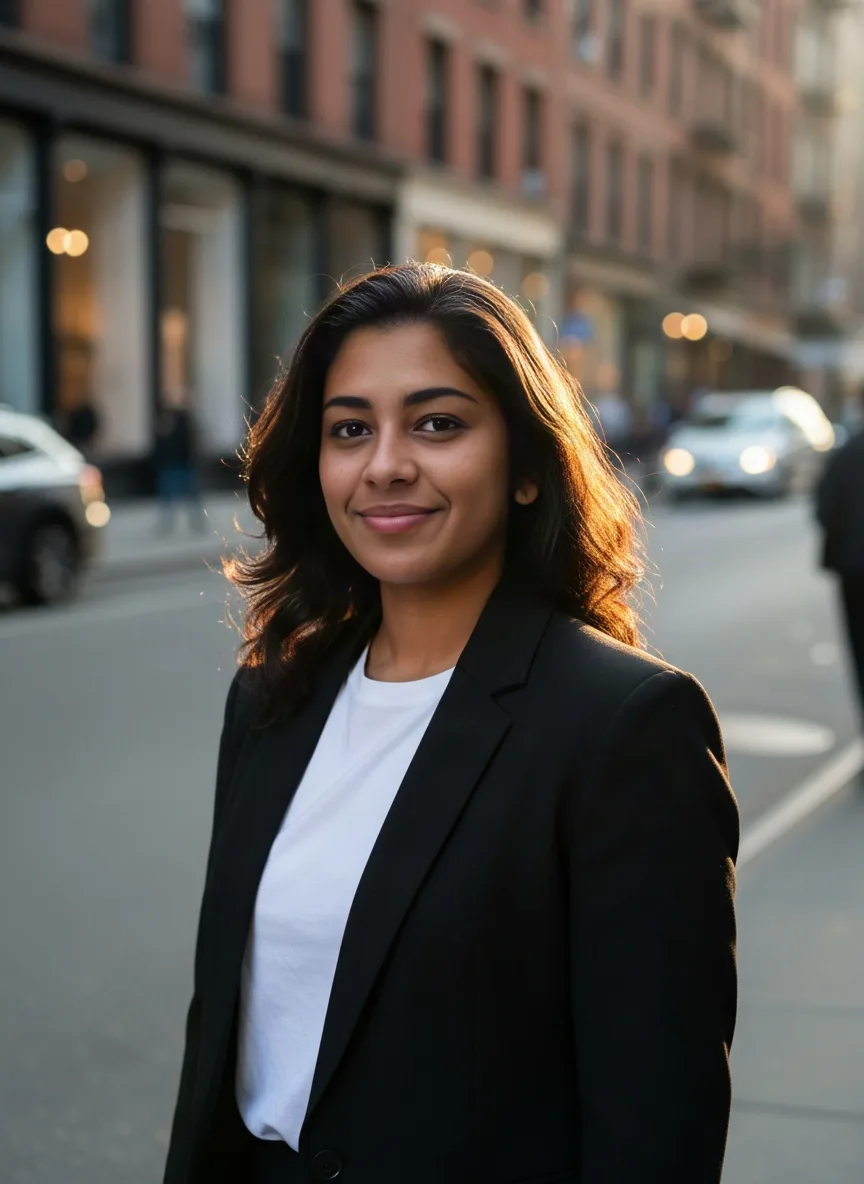
AI Face Swap puts the face from one photo onto the person in another photo, with matching light and skin tone. It takes two uploads and one click: the face first, the target second.
Note
Only swap faces of people who have agreed to it.
Go to the AI Face Swap tool page. It runs a dedicated face swap model, so there is no prompt, no style and no aspect ratio to set.
The first photo is the face you want to use. Pick a clear, front-facing photo with nothing covering the face. If you are not signed in, a sign-in box opens when you upload: create an account with an email and password, or continue with Google.
The second photo is the one the face goes into. Its pose, hair, clothes, light and background stay as they are. The tool needs exactly two photos.
The first thumbnail is the face and the second is the target. If they are the wrong way round, remove both and upload them again in the right order.
The button shows the credit price before you spend anything. The result appears in the results panel after a short wait.
Download the swapped photo, or share it to the public gallery if everyone in it agrees. Nothing is shared unless you choose to.
No. The face swap model takes only the two photos. Everything except the face comes from the target photo.
It swaps faces in photos. For a video, swap the photo first, then animate it with Image to Video.
Only with consent. Do not swap faces of people without permission, and never use swaps to deceive, harass or impersonate. Model providers block many such requests.
Written by
The people who build and run Snap AI Studio. We write about the models, tools and credit prices in the product, and every guide is checked against how the app works today.
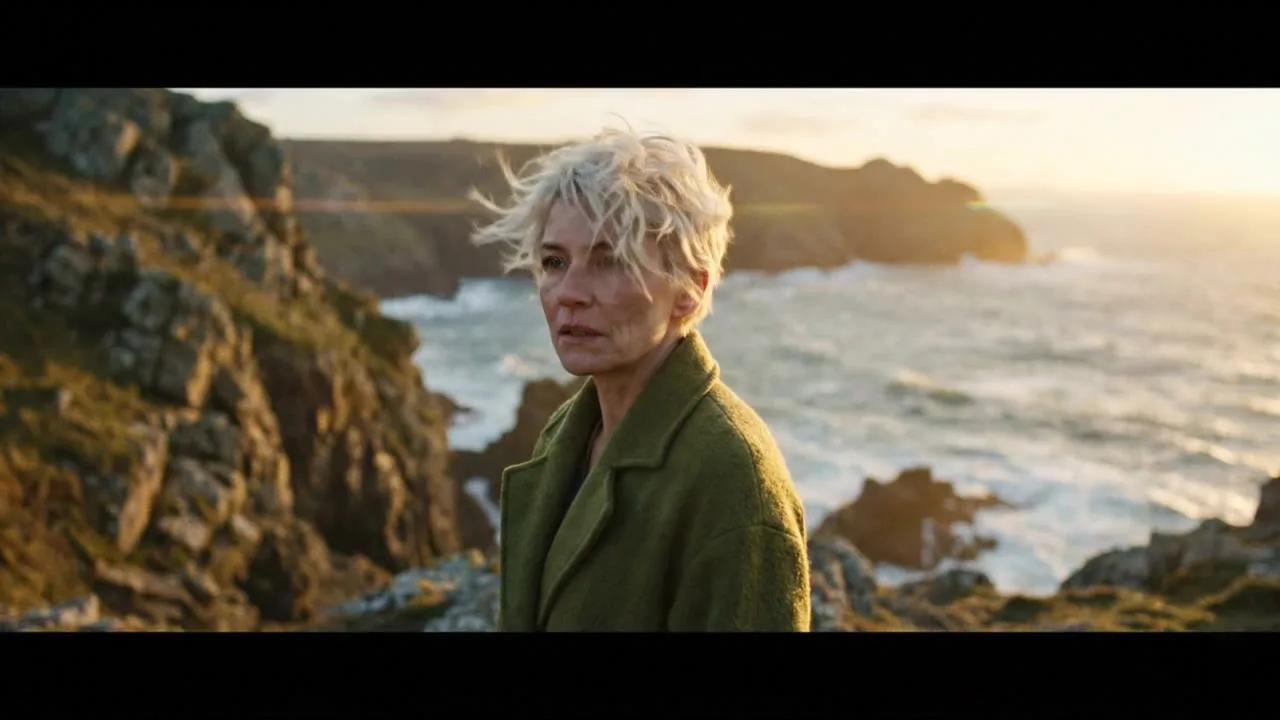
Sep 28, 2026 · 1 min read · Image to Video
Upload a start frame, describe the motion, pick a model, shape and length, and download the MP4. Settings, tips and fixes for image to video.
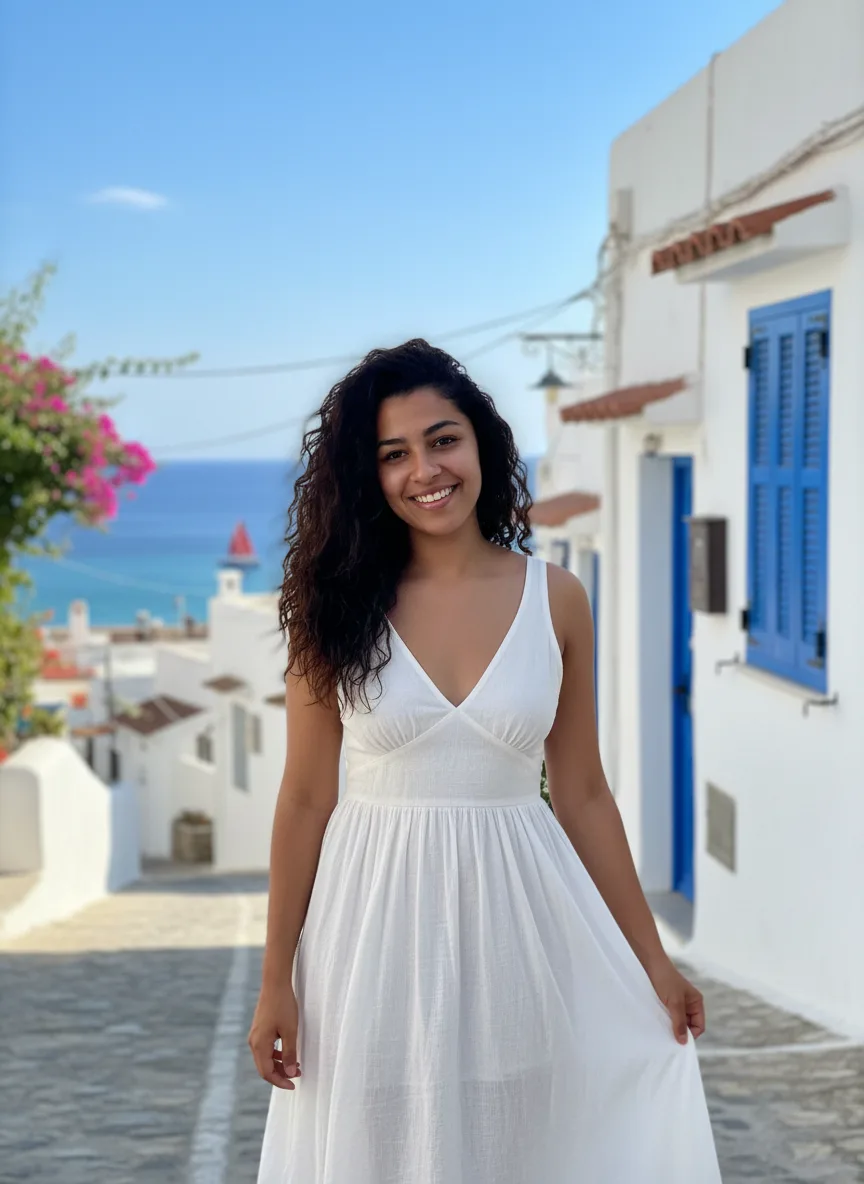
Sep 28, 2026 · 2 min read · AI Photoshoot
Upload 1 to 4 selfies, pick a setting and an outfit, and get studio, street or beach shots with your face kept. Settings, tips and fixes.
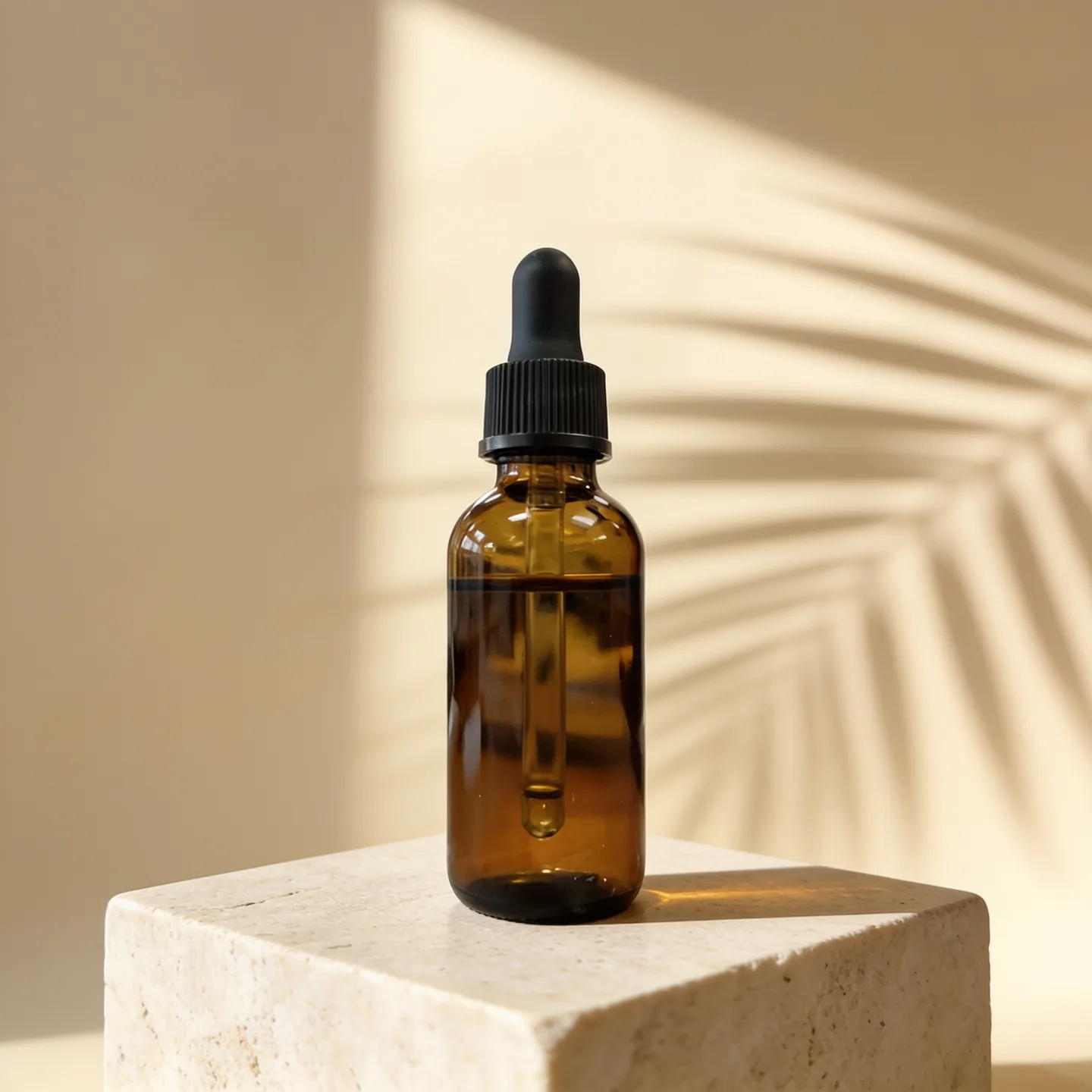
Sep 28, 2026 · 1 min read · AI Product Photos
Upload a phone photo of your product, pick a scene and generate studio or lifestyle shots that keep the label and shape. Settings, tips and fixes.