Image to Video animates a picture you already have. The image becomes the first frame and you describe how it should move, so the look stays exactly as it is. It works for photos, product shots, illustrations and AI images.
How to turn a photo into a video
Upload a start frame, describe the motion, pick a model, shape and length, and download the MP4. Settings, tips and fixes for image to video.
Snap AI Studio team1 min read
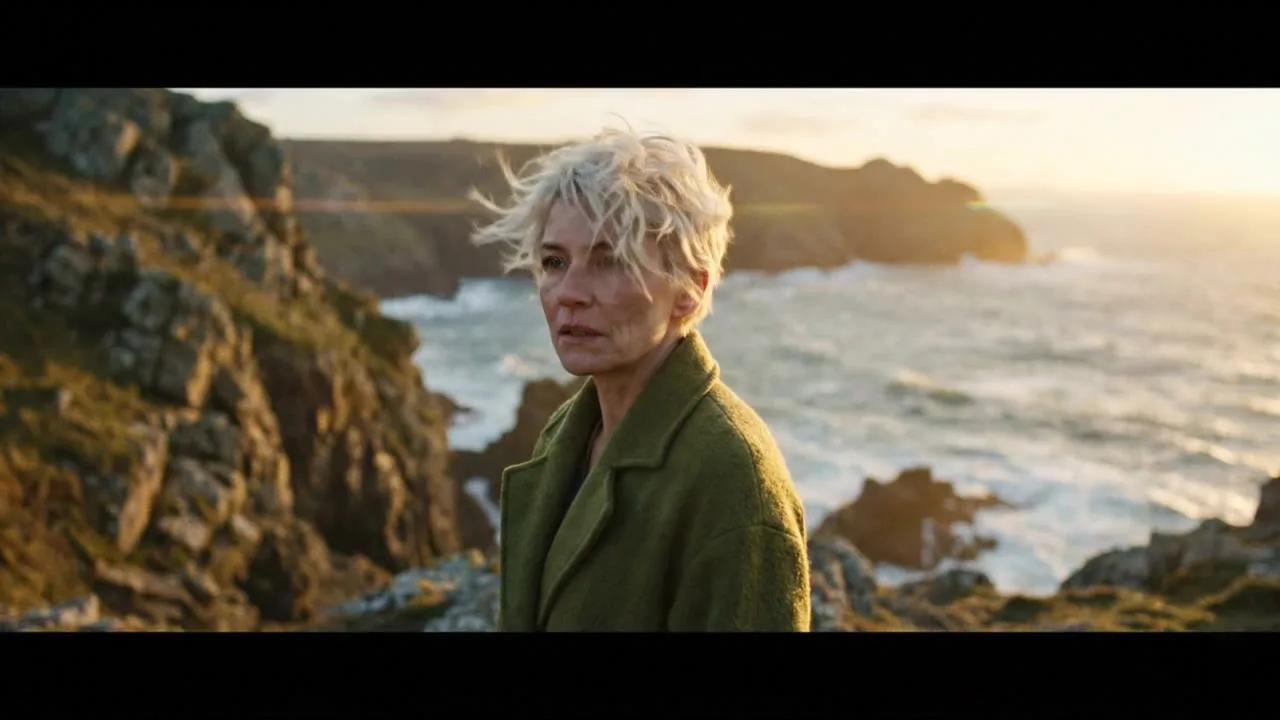
On this page
Steps
- 1
Open Image to Video
Go to the Image to Video tool page. The studio there is set up to animate one image. You can set everything up before you sign in.
- 2
Upload a start frame
Under Start frame, add one image. It becomes the first frame of the video, so the look stays as it is. If you are not signed in, a sign-in box opens when you upload: create an account with an email and password, or continue with Google.
- 3
Describe the motion
In Describe the motion, write what moves and how the camera moves, for example "She turns to the camera and smiles as wind moves her hair, slow push-in". This field is required.
- 4
Choose a model
Kling 3.0 Standard is selected by default. The menu also has Kling 3.0 Pro, Seedance 2.0 Fast, Seedance 2.0, MiniMax Hailuo 2.3, Veo 3.1 Lite, Veo 3.1 Fast, Wan 2.7 and Grok Imagine Video.
- 5
Match the aspect ratio to your image
The aspect ratio starts at 16:9. For a vertical photo, pick 9:16; for a square one, 1:1 where the model offers it. MiniMax Hailuo 2.3 only makes 16:9.
- 6
Pick a length
Kling, Seedance, Wan and Grok Imagine make 5 or 10 second clips, Veo 4, 6 or 8 seconds, and MiniMax Hailuo 2.3 6 or 10 seconds. Video is priced per second, so longer clips cost more.
- 7
Press Generate and download
The button shows the credit price for the model and length first. The clip appears in the results panel when it is ready; download the MP4 or share it to the public gallery.
Tips
- Describe motion, not appearance. The image already sets the look.
- Small, natural movements look most realistic. One action and one camera move per clip is plenty.
- Make the still with an image model first, for example in the AI Image Generator, then animate it here.
- Try the cheapest model at the shortest length first, then rerun the version you like on a stronger model.
Troubleshooting
- Black bars around a Veo video
- Veo 3.1 Lite letterboxes a start frame whose shape differs from the output. Pick the aspect ratio that matches your image, or crop the image to 16:9 or 9:16 before uploading.
- The message starts with "This request was blocked"
- Our own check found something in the motion text that breaks the content policy. No credits were used. The link in the message explains the rule.
- The message says "The model's safety filter rejected this request"
- The model provider refused the image or the prompt. Credits are refunded up to a daily limit. Some models refuse more real-person photos than others; Kling 3.0 Standard is the default for photos of people.
- A Seedance 2.0 Fast video fails with a photo of a real person
- Seedance 2.0 Fast rejects start frames with realistic faces. The failed job is refunded; use Kling 3.0 Standard for photos of people.
- The upload says "File is too large" or "Unsupported file type"
- Use a PNG, JPEG or WebP under the size limit shown in the message.
- The generation failed
- The credits are refunded automatically and the result card says so. Try again or pick another model.
Questions
Which model should I start with?
Kling 3.0 Standard is the default and handles people well. Veo 3.1 Lite is the cheapest Veo and adds audio. Each model shows its price on the Generate button.
Can I use models that are not in this tool's menu?
Yes. In the studio, Image to video mode lists every video model that accepts a start frame, including Veo 3.1, Seedance 2.5, MiniMax Hailuo 3 and Runway Gen-4.5.
Can I use the videos commercially?
Paid plans include commercial use of everything you generate, subject to each model provider's content policy.
Written by
Snap AI Studio team
The people who build and run Snap AI Studio. We write about the models, tools and credit prices in the product, and every guide is checked against how the app works today.
Related guides
Sep 28, 2026 · 2 min read · AI Kiss Video Generator
How to make an AI kiss video
Upload a photo of the couple or one photo of each person, pick a kiss style and generate a short video. Settings, tips and fixes for common problems.
Sep 28, 2026 · 2 min read · AI Hug Generator
How to make an AI hug video
Turn a photo of two people, or one photo of each, into a short hug video. Pick a hug style and a model, then download the MP4. Tips and fixes included.
Sep 28, 2026 · 2 min read · AI Photoshoot
How to do an AI photoshoot from your selfies
Upload 1 to 4 selfies, pick a setting and an outfit, and get studio, street or beach shots with your face kept. Settings, tips and fixes.