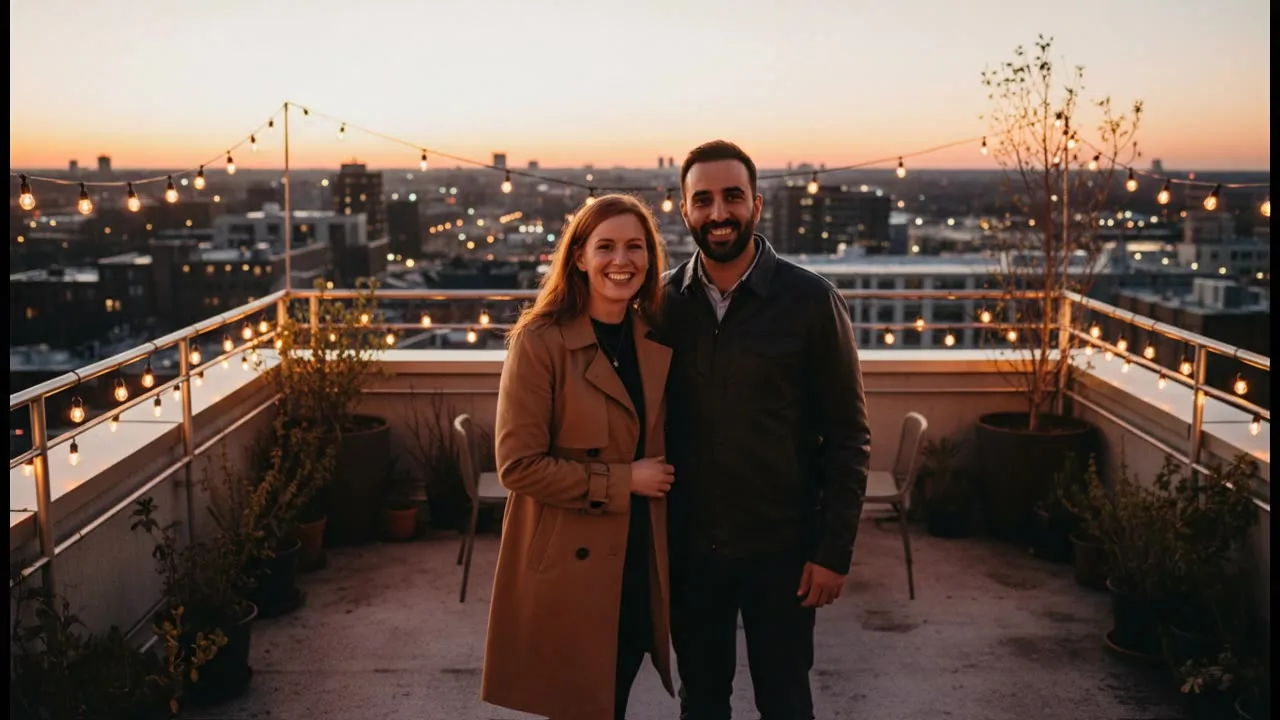
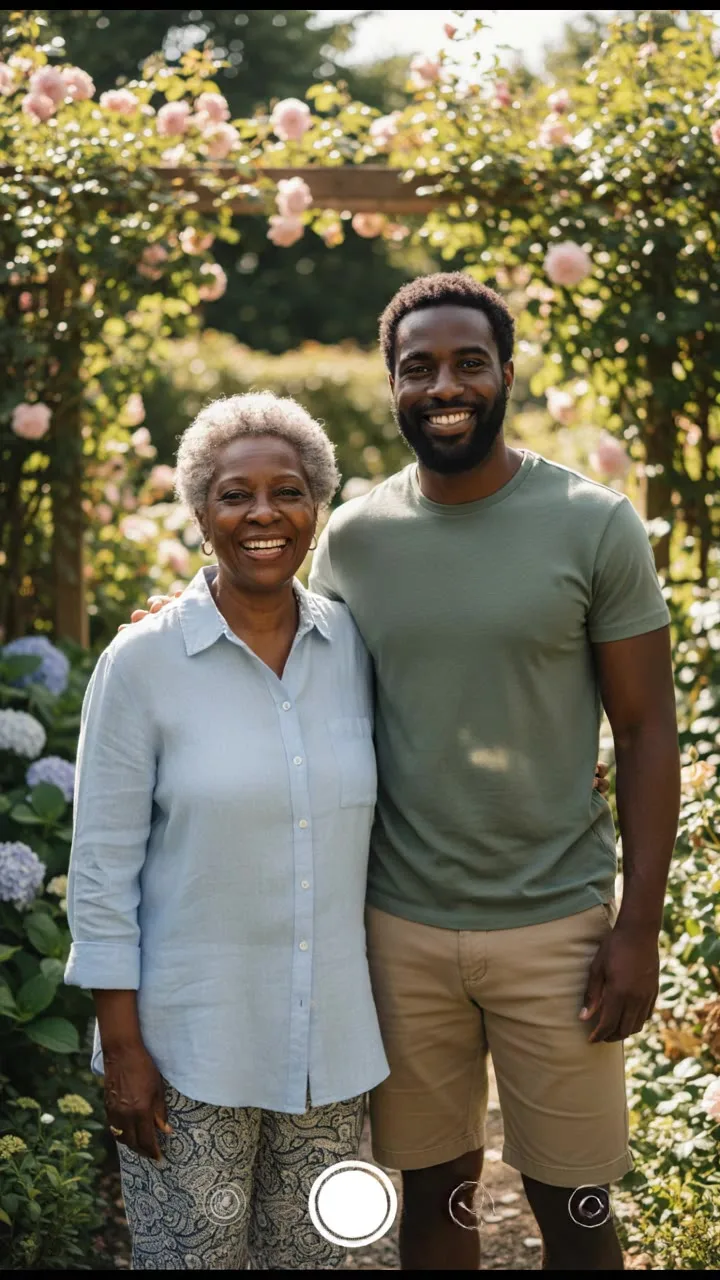
The AI Kiss Video Generator turns a photo of two people into a short clip of them sharing a kiss. It works from one photo of the couple or from one photo of each person, and it runs on the same credit balance as every other tool.
Note
Only use photos of people who have agreed to it, such as you and your partner.
Steps
1
Open the AI Kiss Video Generator
Go to the AI Kiss Video Generator tool page. The studio on that page is already set up for kiss videos and the prompt is written for you. You can look through every setting before you sign in.
2
Add one or two photos
Under Photos, add one photo of the couple together, or one photo of each person (two at most). Faces should be clearly visible. Uploading needs an account, so if you are not signed in a sign-in box opens: create an account with an email and password, or continue with Google. Your settings are kept.
3
Pick a kiss style
Choose a gentle, romantic kiss (the default), a quick playful kiss, a slow movie-style kiss or a sweet kiss on the cheek.
4
Choose a model
Kling 3.0 Standard is selected by default. The model menu also lists Kling 3.0 Pro, Seedance 2.0 Fast, Seedance 2.0, MiniMax Hailuo 2.3, Veo 3.1 Lite, Veo 3.1 Fast, Wan 2.7 and Grok Imagine Video.
5
Set the aspect ratio and length
Vertical 9:16 is preselected on every model that offers it. Lengths depend on the model: Kling makes 5 or 10 second clips, Veo 4, 6 or 8 seconds, and MiniMax Hailuo 2.3 only makes 16:9 clips of 6 or 10 seconds. Longer clips cost more.
6
Press Generate
The button shows the full credit price before you spend anything. With two photos, a note under the button confirms they are combined into one frame first (with Nano Banana), then animated; that step is included in the price.
7
Download or share the video
The clip appears in the results panel when it is ready. Download the MP4 or share it to the public gallery. Nothing is shared unless you choose to.
Tips
One photo of the couple together skips the combine step, so it costs less and keeps the original framing.
When you use two photos, pick ones with similar light and framing. They blend into one frame more naturally.
Front-facing or three-quarter faces animate more naturally than profiles.
Open "Prompt sent to the model" under the settings to see exactly what the video model receives.
Start with the shortest length. Once a model gives you the look you want, run it again at a longer length.
Troubleshooting
The message says "The model's safety filter rejected this request"
The model provider refused the request, and the credits are refunded up to a daily limit. Veo 3.1 Lite refuses some real-person photos, so switch to Kling 3.0 Standard and try again.
A Seedance 2.0 Fast video fails with a photo of a real person
Seedance 2.0 Fast rejects start frames with realistic faces. The failed job is refunded like any other; use Kling 3.0 Standard for photos of people.
The message starts with "This request was blocked"
Our own check stopped the request before it started, so no credits were used. The message links to the content policy, which explains the rule it hit.
Black bars at the top and bottom of a Veo video
Veo 3.1 Lite letterboxes a start frame whose shape differs from the video. Crop your photo to the aspect ratio you picked (9:16 for vertical) before uploading, or use Kling 3.0 Standard.
The upload says "File is too large" or "Unsupported file type"
Photos must be PNG, JPEG or WebP and under the upload size limit shown in the message. Export a smaller JPEG from your phone and upload it again.
The generation failed
The credits are refunded automatically, and the result card says so. Try again, or switch to another model in the menu.
Not enough credits
The message links to pricing, where you can pick a plan or buy a one-off top-up.
Questions
Do I need two photos?
No. One photo with both people in it works and is the cheaper option. Two separate photos are combined into one frame first, then animated.
Why does the price go up when I add a second photo?
Combining two photos is an extra image generation with Nano Banana before the video model runs. Both are charged up front, and the Generate button shows the total.
Does the video have sound?
It depends on the model. Veo 3.1 Lite, Veo 3.1 Fast, Seedance 2.0, Seedance 2.0 Fast, Wan 2.7 and Kling 3.0 Pro generate audio with the video. Each model page says what it produces.
Can I use a photo of a celebrity or a stranger?
No. Only use photos of yourself and people who have agreed to it. Model providers also block many requests involving public figures.
The people who build and run Snap AI Studio. We write about the models, tools and credit prices in the product, and every guide is checked against how the app works today.