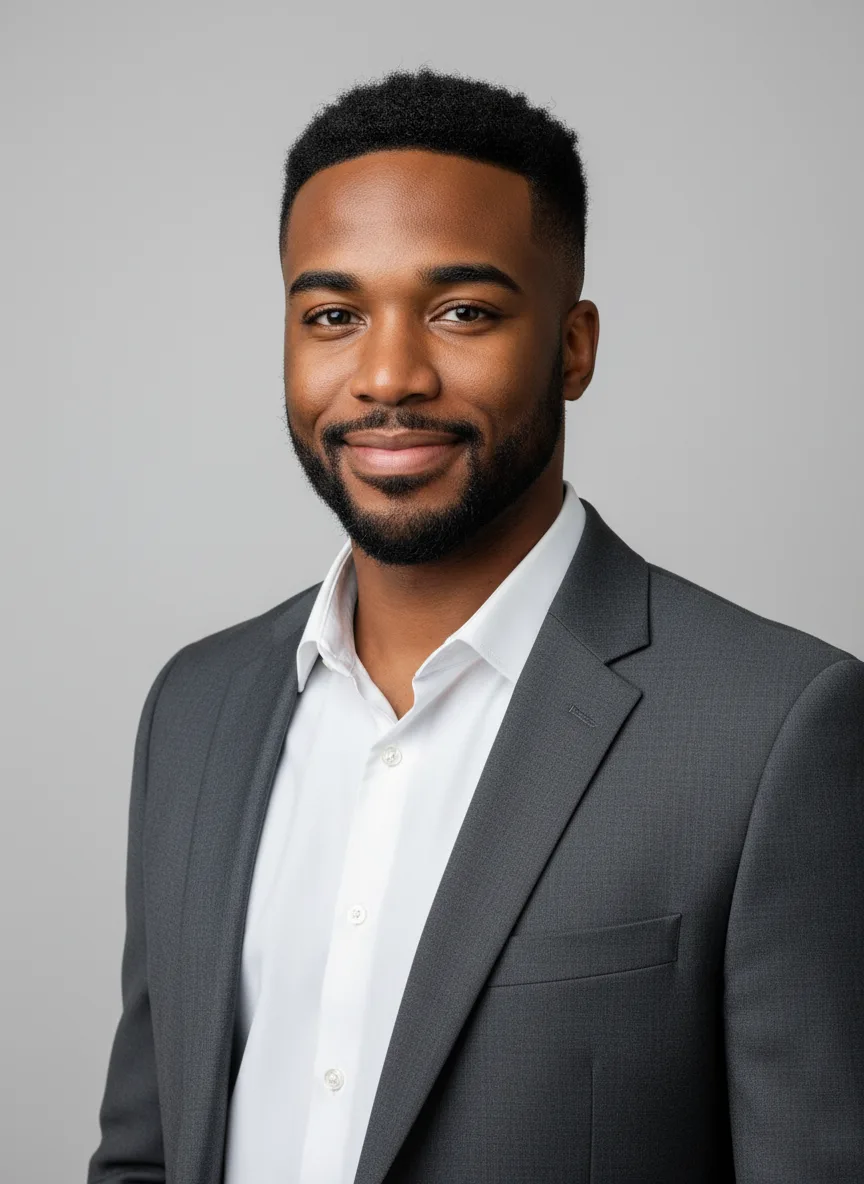
The AI Headshot Generator turns a selfie into a professional head and shoulders portrait with the attire and backdrop you choose, while keeping your real face. Use it for LinkedIn, a resume, a team page or a speaker bio.
How to make an AI headshot from a selfie
Upload a clear selfie, pick attire and a backdrop, and generate a professional headshot that keeps your face. Settings, tips and fixes.
Snap AI Studio team1 min read
On this page
Steps
- 1
Open the AI Headshot Generator
Go to the AI Headshot Generator tool page. The studio there is set up for head and shoulders portraits with studio lighting, and the prompt is built from your choices. You can set everything up before you sign in.
- 2
Upload your selfies
Under Your photos, add 1 to 4 clear photos of the same person: face visible, good light, no sunglasses. Nano Banana, the default, takes up to 3; the other models take 4. If you are not signed in, a sign-in box opens when you upload: create an account with an email and password, or continue with Google.
- 3
Pick your attire
Choose a charcoal blazer with no tie (the default), a navy suit and white shirt, a smart casual knit sweater, a white blouse, a black turtleneck or a doctor's white coat.
- 4
Pick a backdrop
Choose a light gray studio backdrop (the default), a blurred modern office, a dark charcoal backdrop, soft outdoor greenery bokeh or a white backdrop.
- 5
Pick a model and shape
Nano Banana is selected by default; Nano Banana 2, Nano Banana Pro, Seedream 5.0 Lite, Seedream 4.5, GPT Image 2 and FLUX.2 [pro] are in the menu. Portrait 3:4 is preselected. Pick 1:1 for a square profile photo.
- 6
Press Generate
The button shows the credit price before you spend anything. The headshot appears in the results panel after a short wait. Generate a few variations, since small differences in expression matter.
- 7
Download the one you like
Download your favorite. For a print-ready file, run it through the Image Upscaler afterwards.
Tips
- Take the selfie facing a window in daylight, eyes open, hair the way you normally wear it.
- Keep the realistic defaults. A headshot should look like you on a good day, not like someone else.
- For a team page, give everyone the same attire and backdrop so the photos match.
- Seedream 5.0 Lite, Seedream 4.5 and GPT Image 2 can return up to 4 images in one run, which is a quick way to get variations.
Troubleshooting
- The headshot does not look like me
- Upload two or three sharp, well-lit selfies instead of one and generate again. Nano Banana Pro is sharper if the default is not close enough. If it still does not look like you, do not use it.
- I cannot add a fourth photo
- Nano Banana takes up to 3 reference photos. Switch model to use 4.
- The message says "The model's safety filter rejected this request"
- The model provider refused the request. Credits are refunded up to a daily limit. Try again with a different photo or model.
- The upload says "File is too large" or "Unsupported file type"
- Use a PNG, JPEG or WebP under the size limit shown in the message.
- The generation failed
- The credits are refunded automatically and the result card says so. Try again or pick another model.
- Not enough credits
- The message links to pricing, where you can pick a plan or buy a one-off top-up.
Questions
Are AI headshots fine for LinkedIn?
Many people use them. The photo should look like you, so keep the realistic settings. If the result does not look like you, do not use it.
Do I need a special selfie?
No. Any sharp, well-lit photo with your whole face visible works. A phone selfie near a window in daylight is ideal.
What happens to my photos?
Uploads are stored privately in your account and are only sent to the model that runs your job. Nothing is shared unless you choose to.
Written by
Snap AI Studio team
The people who build and run Snap AI Studio. We write about the models, tools and credit prices in the product, and every guide is checked against how the app works today.
Related guides
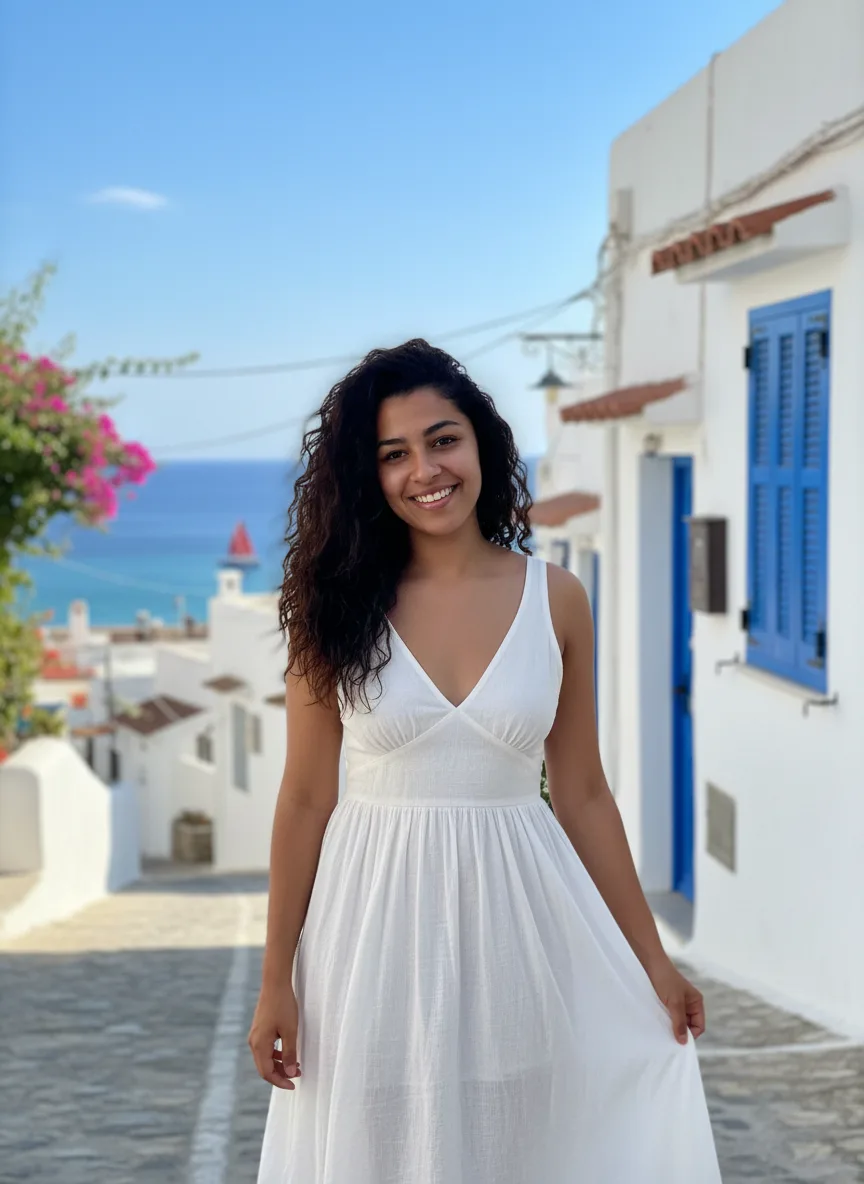
Sep 28, 2026 · 2 min read · AI Photoshoot
How to do an AI photoshoot from your selfies
Upload 1 to 4 selfies, pick a setting and an outfit, and get studio, street or beach shots with your face kept. Settings, tips and fixes.
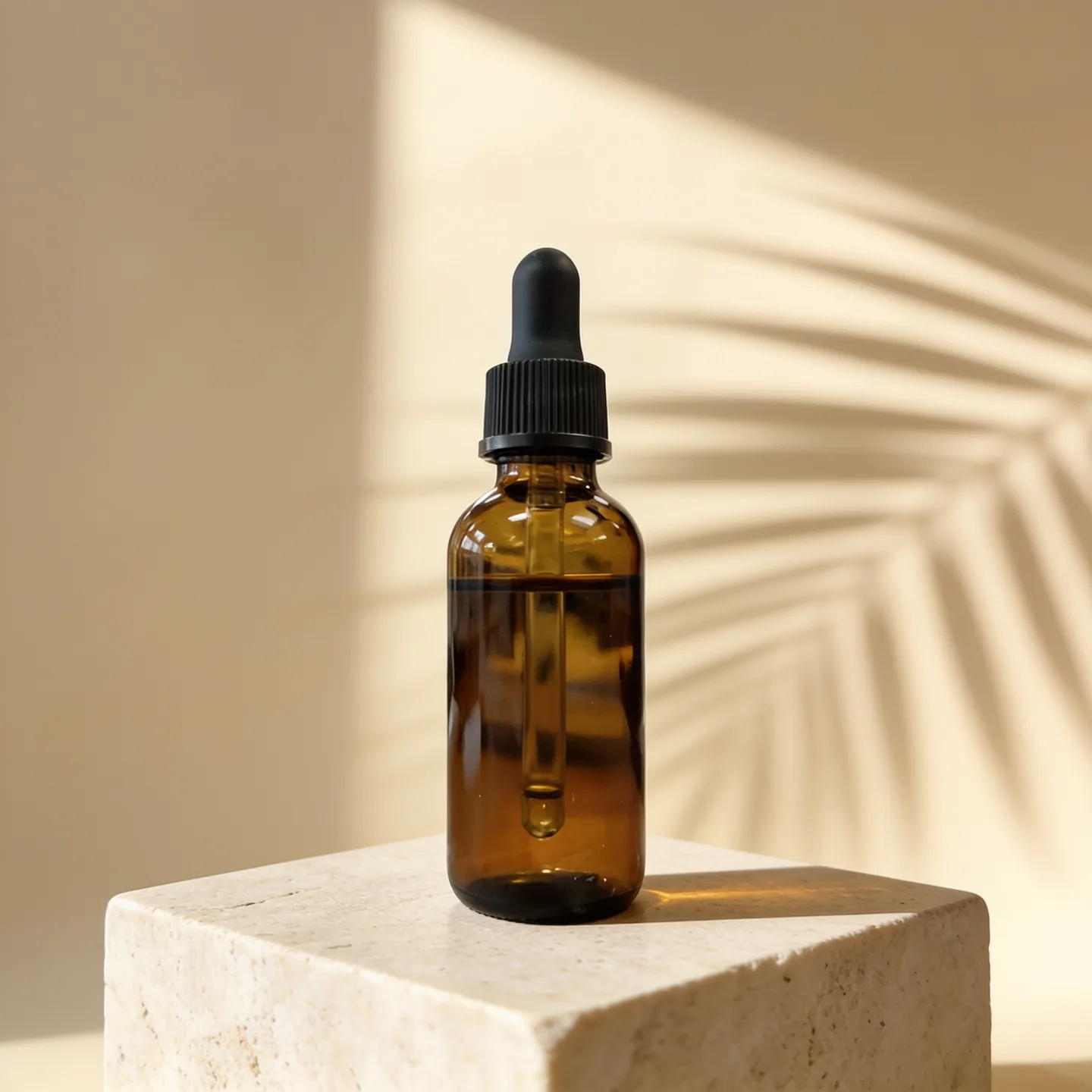
Sep 28, 2026 · 1 min read · AI Product Photos
How to make AI product photos from a phone photo
Upload a phone photo of your product, pick a scene and generate studio or lifestyle shots that keep the label and shape. Settings, tips and fixes.
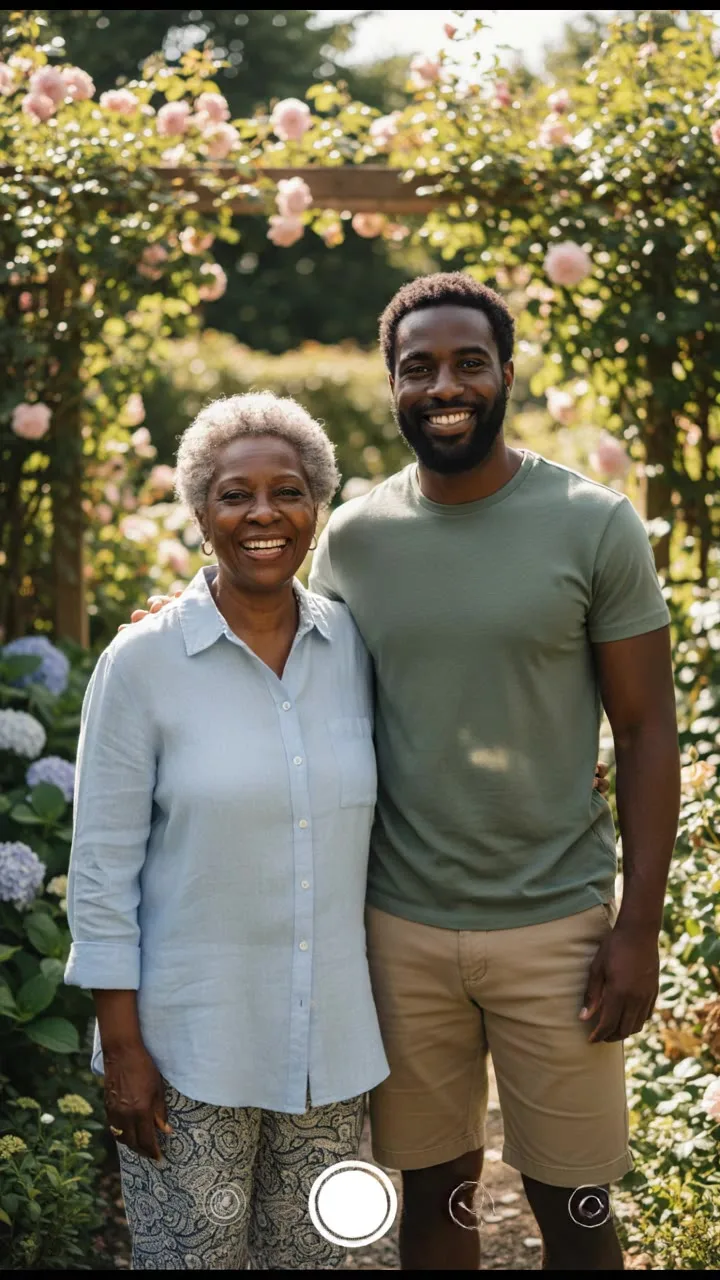
Sep 28, 2026 · 2 min read · AI Hug Generator
How to make an AI hug video
Turn a photo of two people, or one photo of each, into a short hug video. Pick a hug style and a model, then download the MP4. Tips and fixes included.