To turn a photo into a painting with AI, upload the photo to a tool that edits photos, name the medium you want (oil on canvas, watercolor, Renaissance portrait, ukiyo-e print), tell the model what must stay the same, and compare the result with the original before you download it. The model keeps the subject, pose and composition of your photo and repaints the surface: brushstrokes, paper texture, color palette and light. Which tool to use depends on what is in the picture, and whether the painting looks like your photo depends mostly on the photo itself, so this guide covers both before it gets to models and printing.
Photo to painting is not the same as an AI painting generator
Search for "AI painting generator" and most results are text-to-image tools: you describe a scene and the model paints something new. That is useful for wall art of a lighthouse in a storm, and it is what our AI art generator does, with oil, watercolor, ink, gouache and concept art as its medium choices. It cannot paint your grandmother, your cat or your first apartment, because it never sees them.
Photo to painting is an edit. The model receives your image and an instruction such as "repaint this as a classical oil painting, keep the face and pose", and changes the medium while holding on to the content. Every tool below works that way.
Step 1: Pick a photo that will survive the brush
Painting styles throw away detail. A good source photo has enough shape and light that the painting still reads as the same scene after the detail is gone.
- One clear subject. A person, a pet, a house, a bouquet. Busy scenes with many small elements turn into texture.
- Directional light. Window light from one side gives the painter shadows to model a face with. Flat midday light or a phone flash produces flat paintings.
- A large face for portraits. The face should fill about a third of the frame. Small faces get repainted as generic faces.
- No heavy filters. Beauty filters and strong color grades change proportions and skin tone before the painting even starts.
- Old photos are fine. Faded or scratched prints paint well once they are cleaned up. Run them through the photo restorer first, and see the guide to restoring old photos for what restoration can and cannot bring back.
Step 2: Choose the medium
The medium decides how much of your photo survives. This is how the common ones behave on the same portrait:
| Medium | What the model does | Likeness | Best subjects |
|---|---|---|---|
| Classical oil painting | Thick brushstrokes, deep shadows, warm varnished color | High | Portraits, couples, pets, interiors |
| Renaissance royal portrait | Oil painting plus period costume and a dark background | High, the outfit changes | Gifts, pet portraits, jokes that look expensive |
| Soft watercolor | Transparent washes, white paper showing through, soft edges | Medium | Houses, gardens, landscapes, children |
| Ukiyo-e woodblock | Flat color areas, outlines, patterned skies | Low to medium | Landscapes, waves, city streets |
| Impressionist | Broken color, visible dabs, light over detail | Medium | Gardens, beaches, street scenes |
| Pencil sketch | Graphite lines and hatching, no color | Medium to high | Portraits, architecture |
Each of these has a style page that shows the exact style text it adds to your prompt and accepts your photo in Edit photo mode: oil painting, Renaissance, watercolor, ukiyo-e and pencil sketch.
Step 3: Use the tool that fits the subject
| Subject | Tool | Why |
|---|---|---|
| A person | AI portrait generator | Six preset styles, three of them painted (classical oil, soft watercolor, Renaissance royal), and a prompt that tells the model to keep facial features and identity. Up to 4 reference photos |
| A pet | Pet portraits | Presets for a Renaissance royal, a Victorian aristocrat and a watercolor illustration, with breed, fur color and markings kept |
| A house, landscape, car or anything else | AI photo editor | You write the instruction, so any medium works: "turn this photo into a watercolor painting on textured paper, keep the house and the tree exactly where they are" |
| No photo, an idea only | AI art generator | Text to painting, as above |
A prompt that works in the photo editor has three parts: the medium with one or two physical details ("oil on canvas, thick impasto brushstrokes"), the light ("warm light from the left window"), and what must not change ("keep the faces, the pose and the composition"). Leaving out the third part is the most common reason a painting comes back with a different nose or a rearranged room.
Step 4: Compare two models
The portrait generator and the photo editor default to Nano Banana, which is fast and holds faces well when it edits. Two others are worth a second try on the same photo:
- GPT Image 2 follows long instructions closely, so it is the one to use when you asked for something specific (a gilded frame, a particular background color) and the default ignored it.
- FLUX.2 [pro] produces the richest surface texture, the default on the oil painting style page and the art generator. It is the better choice for landscapes and still lifes where likeness matters less than the paint.
The Generate button shows the credit price for the model you picked before anything is spent, failed generations are refunded, and new accounts get 60 free credits, enough to try one photo in two or three mediums.
Step 5: Fix what went wrong
| Problem | Likely cause | Fix |
|---|---|---|
| The face changed | Face small or shadowed, or watercolor simplified it | Crop closer, switch to oil, or add "keep the exact face" to the prompt |
| It looks like a photo with a filter | The medium was too vague | Name physical details: brushstrokes, canvas weave, paper grain, visible pencil lines |
| Colors went muddy | Mixed light in the photo (tungsten plus daylight) | Use a photo with one light source, or name the palette you want |
| The background took over | Busy background in the source | Remove distractions first with the object remover |
| Clothes or jewelry changed | Renaissance presets add period costume by design | Use classical oil instead, which keeps your outfit |
Step 6: Print it
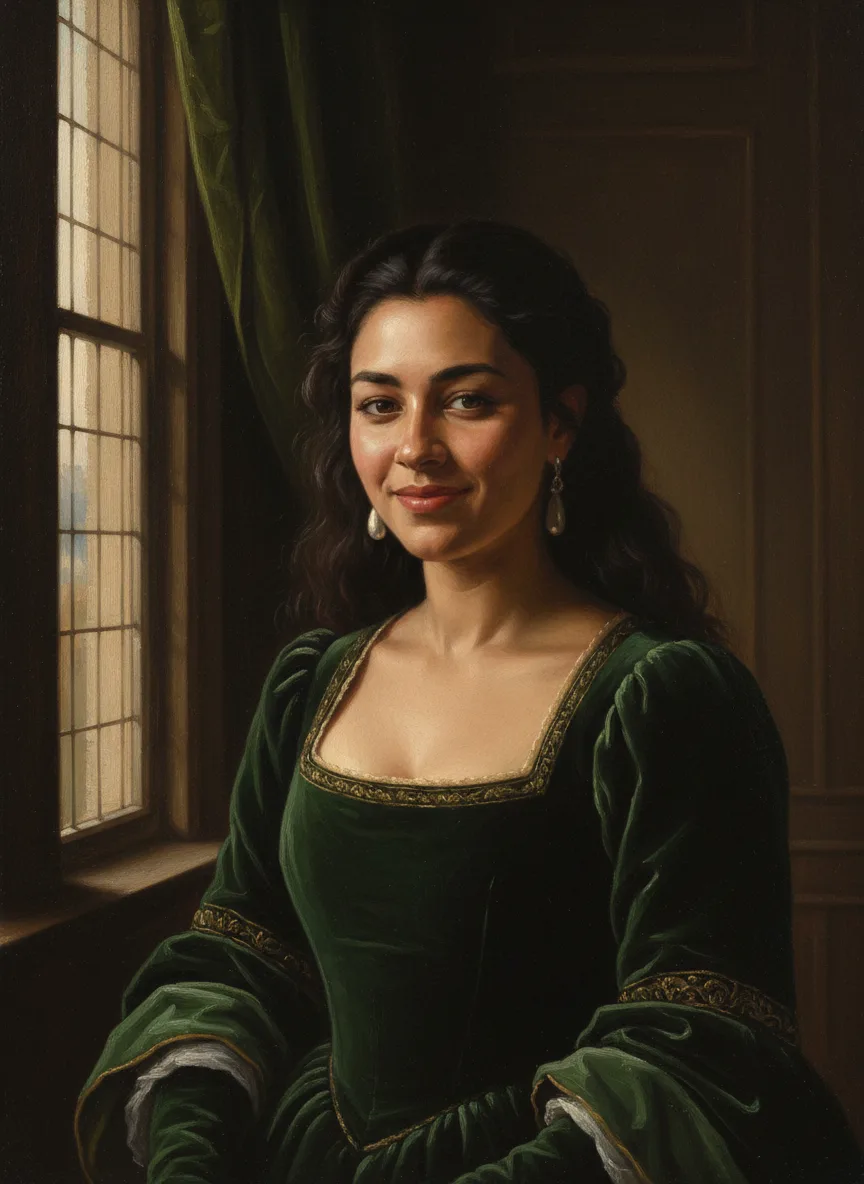
The painting comes back at about one megapixel. Our Renaissance oil portrait sample, the image at the top of this page, is 864 x 1184 pixels. At 300 pixels per inch, the standard for a sharp photo print, that is about 2.9 x 3.9 inches; at 150 pixels per inch, which is plenty for a canvas print viewed from a few feet away, it is about 5.8 x 7.9 inches.
For anything bigger, run the painting through the image upscaler first. It doubles width and height and adds detail, so the same portrait becomes 1728 x 2368 pixels, about 11.5 x 15.8 inches at 150 pixels per inch. Canvas texture hides fine detail, so that is enough for a 12 x 16 inch canvas. Upscale before you add any text, because the upscaler can soften small lettering.
AI painting or a hand-painted commission?
They solve different problems. An AI painting takes a minute, lets you try five mediums on one photo, and costs credits rather than an artist's fee, which makes it the right choice for gifts on short notice, previews before you commission, and pet or family portraits you want in several styles. A commissioned painting is a physical object with real paint, made by a person who makes interpretive choices about your subject, and it takes weeks. Many people use the AI version to decide on a pose and a medium, then send that to an artist.
Related guides
If you want the same idea in a more playful finish, the photo to cartoon guide covers 3D, comic, anime and clay styles. For black and white family photos, colorize them before painting, since color carries much of a painting's mood. And to clean a photo before it becomes a painting, the guide to removing objects from photos shows how to take out the bin, the stranger or the power line first.